
It’s that time of the year again! Black Friday is just three weeks away, and store owners are already busy preparing discounts, updating prices, and planning promotions.
But there’s one thing that’s easy to overlook: you need to test checkout before Black Friday. Have you actually tested yours?
Imagine a customer finds a great deal, adds it to their cart, and heads to checkout. Everything looks fine until the payment fails or the discount doesn’t apply correctly.
That’s the last thing you want during your biggest sale of the year.
So, before Black Friday arrives, let’s go through how to test your store’s checkout, from payments and coupons to shipping, mobile orders, and confirmation emails.
Why Should You Test Your Checkout Before Black Friday?
Because the whole selling thing depends on it.
Think about it. You spend weeks preparing discounts, creating banners, and bringing people to your store. But if customers can’t complete their payments, what’s the point of all that work?
And it’s not always a broken payment gateway. Sometimes a coupon doesn’t apply, the checkout freezes on mobile, or an order goes through without sending a confirmation email.
These problems might seem small until dozens of customers start running into them.
According to Baymard Institute, the average online cart abandonment rate is 70.22%. Of course, not all of those abandoned carts result from checkout problems. But why give customers another reason to leave?
That’s why you should test your checkout before Black Friday. Find the problems now, rather than hearing about them from frustrated customers during the sale.
Before You Start, Get a Few Things Ready
You wouldn’t want to accidentally charge yourself, send a fake order to your shipping partner, or mess up your sales reports while testing.
So, do a little preparation first.
Make a safe place to test
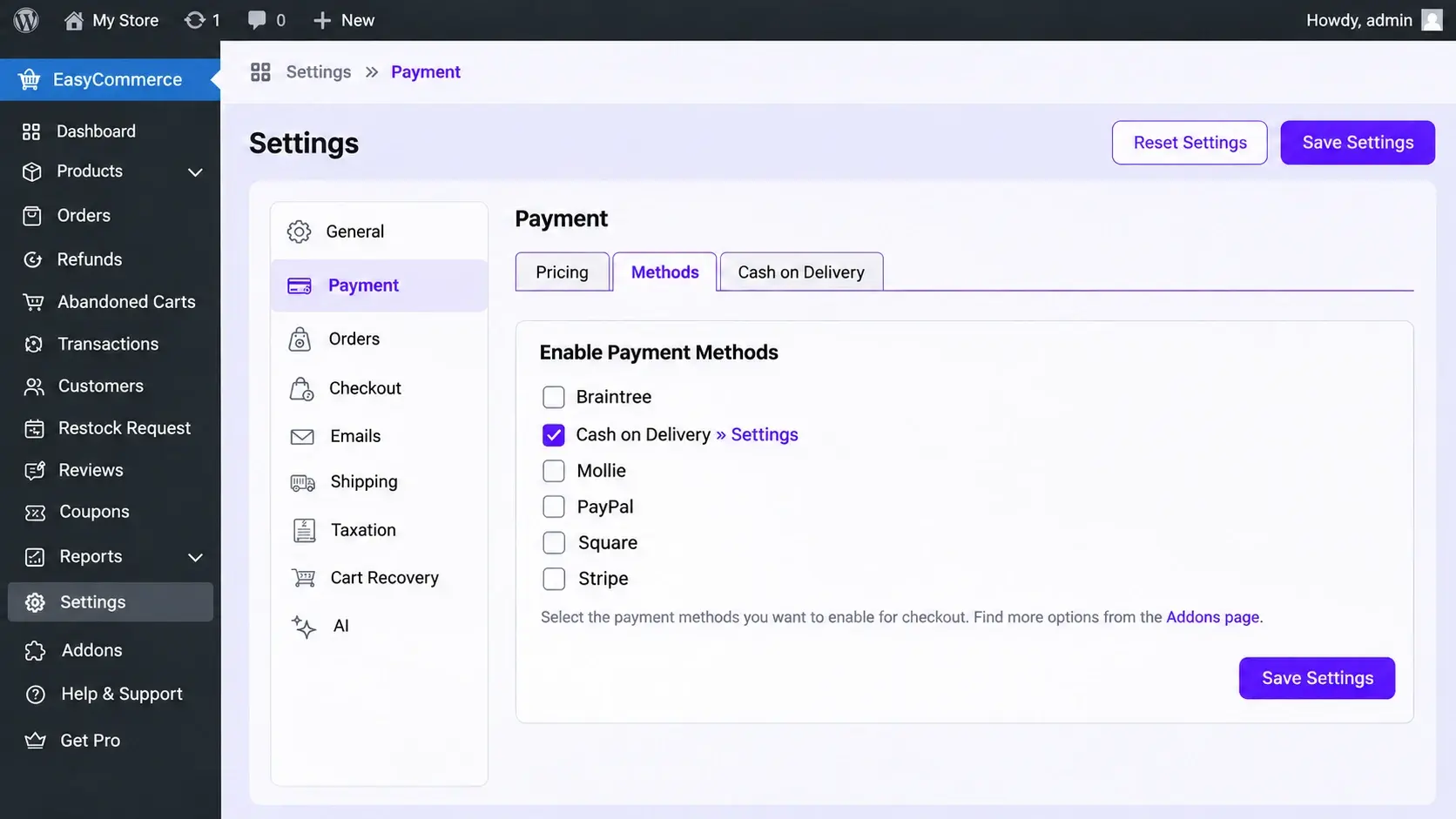
If possible, create a staging copy of your WordPress store. It’s essentially a separate version of your website where you can experiment without disturbing real customers.
WooCommerce’s testing documentation specifically recommends staging because test orders can trigger emails, appear in reports, and activate other integrations.
Here’s what you’ll need:
- A recent backup of your website.
- A staging site with your current checkout settings.
- Test credentials for your payment gateway.
- A test email address and customer account.
- A few products to place orders with.
Make sure real shipping, fulfillment, and marketing integrations won’t act on your test orders.
You’ll also want to double-check your live settings after testing. A successful order on staging doesn’t automatically mean your production checkout is configured correctly.
Pick products that could cause trouble
Don’t test with just one regular product.
Choose a sale item, a full-priced product, something with limited stock, and a digital product if you sell one.
Also prepare a working Black Friday coupon and an expired one.
Why? Because different products and promotions may follow different checkout rules. You want to catch those differences before your customers do.
How to Test Checkout Before Black Friday of Your Store
Now comes the interesting part.
Pretend you’re a customer who’s just discovered your store. Don’t use the admin dashboard to create an order. Actually go through the shopping process.
And don’t stop after one successful purchase. Try the situations below, including a few things customers might do that you weren’t expecting.
1. Start with the cart
This sounds too simple to bother testing, right?
But the cart is where your store starts calculating what a customer owes you.
Open your website in a private browser window, find a product, and add it to the cart.
Now change the quantity.
Let’s say a product costs $40. If you add two, the subtotal should become $80. Remove one, and it should return to $40.
Next, add another product, remove the first one, and move to checkout.
Then go back to the cart.
Are the right products still there? Did the quantities change unexpectedly? Are the prices the same as before?
Try an empty cart, too. It shouldn’t let someone proceed with an order containing nothing.
If the cart can’t handle these basic actions reliably, there’s no reason to move on to payment testing yet.
2. Try checking out as a guest
Picture someone who sees your Black Friday offer on social media.
They’ve never visited your store before. They just want to buy the product and leave.
Now imagine they’re asked to create an account before paying, even though you intended to allow guest purchases.
That could be enough to make them reconsider.
If your store supports guest checkout, open another private browser window and try purchasing without signing in.
Enter your details, choose a payment method, and continue.
Then repeat the process using an existing customer account.
While you’re at it, enter an incorrect email address or leave a required field empty.
Does the checkout explain what’s wrong? Or does it simply refuse to continue?
You want both supported customer types to complete their purchases without getting stuck. If your store requires accounts by design, test the registration and login process instead.
3. See what happens when discounts overlap
Here’s where Black Friday can get messy.
Suppose you’re offering 50% off a product that normally costs $100.
The Black Friday price is now $50.
But you also have a 20% coupon running. Someone discovers the coupon and tries applying it to the discounted product.
What should happen?
If you’ve allowed both offers to work together, the customer gets another $10 off and pays $40 before any shipping or tax.
If that coupon is meant for regular-priced products only, it shouldn’t apply at all.
Neither outcome is automatically wrong. The problem is when your checkout does something you didn’t intend.
Try these situations:
- Apply a valid Black Friday coupon.
- Enter an expired or incorrect coupon.
- Try a coupon on an excluded product.
- Apply two coupons together, if your store supports it.
- Test a minimum-spend discount with a cart just below the required amount.
- Check whether free shipping activates at the intended order value.
You should know exactly what the final total ought to be before running each test.
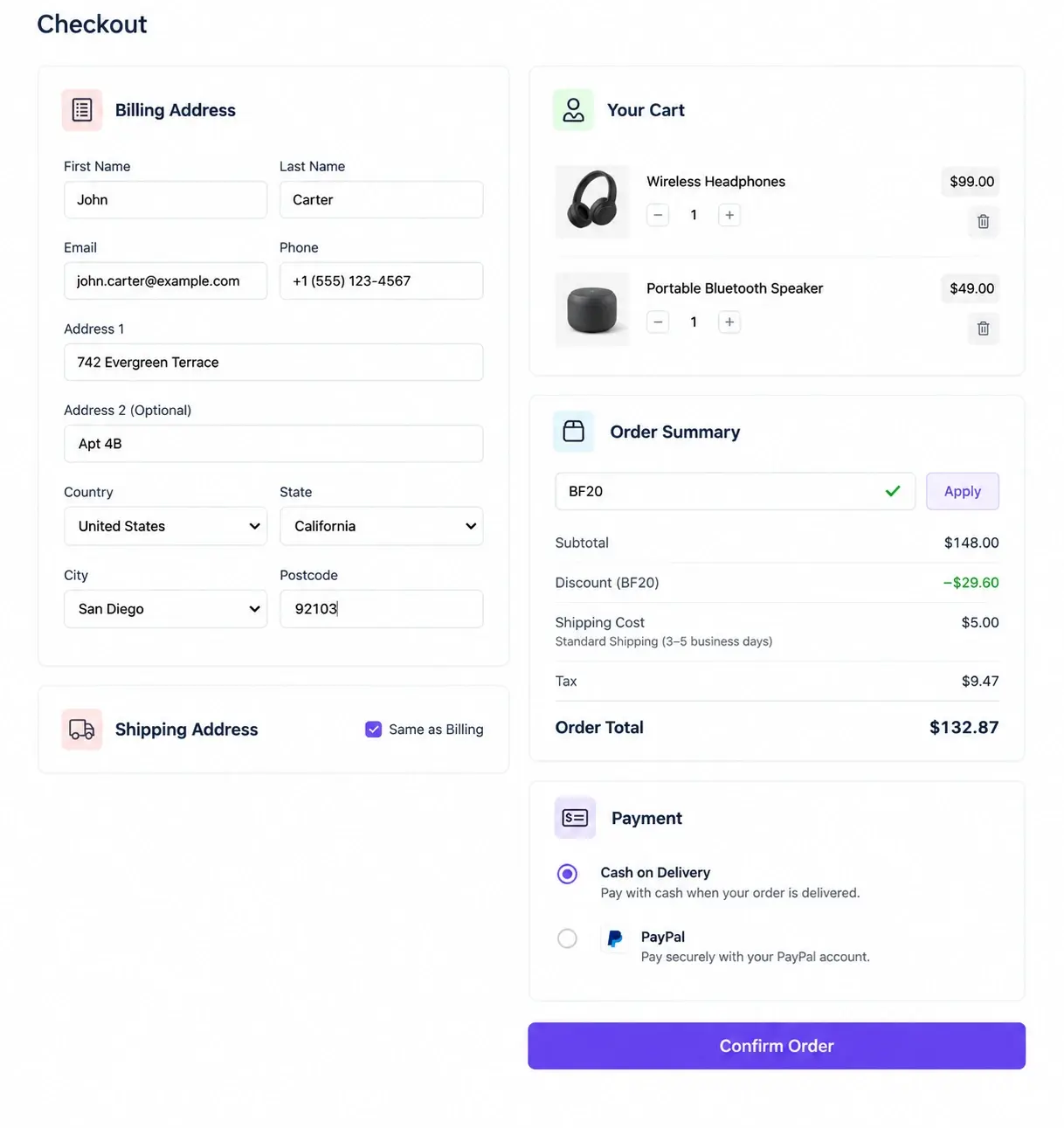
If you’re using WooCommerce, its coupon management documentation explains how product exclusions, spend limits, and usage restrictions work.
And don’t forget to check what happens when a customer removes a product after applying a coupon. If the cart no longer qualifies for the offer, the discount should follow your configured rules.
4. Make a payment, then deliberately fail one
A lot of store owners test checkout by placing one order, seeing a success message, and calling it a day.
But what if the payment doesn’t go through?
You need to test that situation too.
First, enable sandbox or test mode for your payment provider on your staging site.
Stripe’s official testing guide provides test payment methods for successful transactions, declined cards, and authentication scenarios. PayPal has a sandbox environment for testing transactions without using real money.
Start with a successful payment.
Afterward, open your WordPress order dashboard. Does the order appear? Is the amount correct? Does the status show that payment was received?
Now simulate a declined payment.
A customer should get a clear message explaining what happened. Your store shouldn’t record the order as successfully paid.
Here’s another situation worth testing.
Someone clicks Place Order, but the page takes several seconds to respond. They get impatient and click again.
Or they refresh the page and retry.
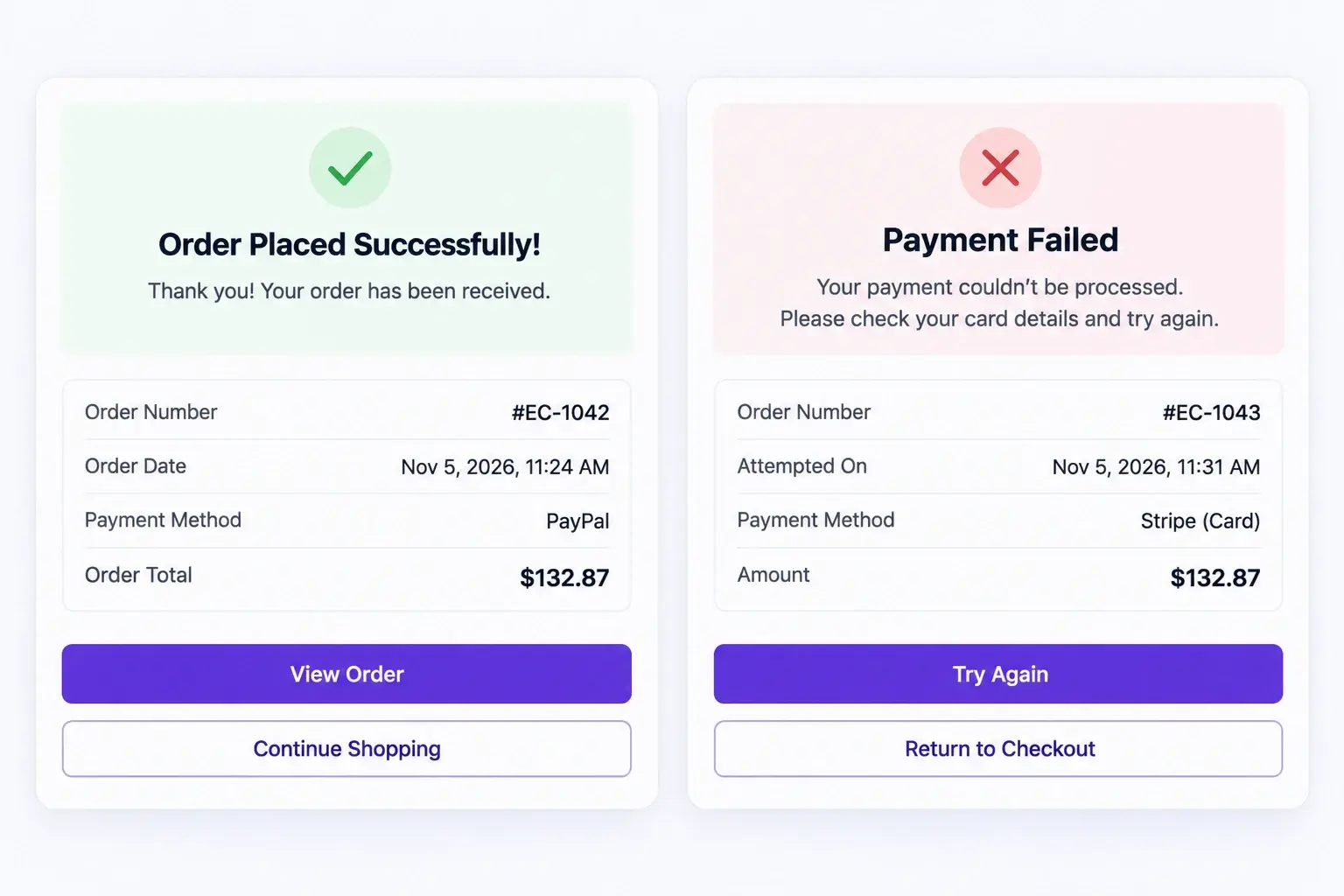
Could that create two paid orders for the same purchase?
Use your gateway’s supported test scenarios to check how retries are handled. If duplicate charges or fulfillment can occur, that’s something your developer should investigate before launch.
Repeat the successful and failed-payment checks for each payment method you offer.
5. Check shipping and taxes before someone complains
Imagine a customer sees a $60 product, adds it to their cart, and discovers an unexpected $25 shipping charge at the last step.
Maybe that’s the correct rate. Maybe your shipping settings are wrong.
You need to know which.
Place test orders using addresses from the regions you actually deliver to.
Start with a local address, then try one farther away.
Check whether the shipping options and charges change the way they’re supposed to.
If you’re offering free shipping above $100, try a $99 cart and a $101 cart. Account for the way your store calculates eligibility after discounts.
Taxes need the same attention.
For each location where your store collects tax, make sure the calculation follows your configured rules.
And if you sell digital products, check that customers aren’t being asked for unnecessary shipping details.
Our guide to selling digital products with WordPress covers the setup in more detail.
The final amount a customer sees should match what you intended to charge. No surprises.
6. Put your laptop aside and test on your phone
Now try buying something while holding your phone in one hand.
Seriously.
A checkout that looks perfect on a desktop can be frustrating on a smaller screen.
Maybe the coupon field is difficult to find. Maybe the payment button sits below a huge block of text. Or perhaps the payment window opens in a way that makes it difficult to return to the store.
Go through the entire purchase on a real smartphone.
Pay attention to how easily you can enter your address, select a payment method, and submit the order.
Then try using a slower connection.
You can simulate one using the network-throttling tools in your browser.
Does the checkout show that it’s processing the payment? Can you still see what happened if the connection drops?
Customers shouldn’t be left guessing whether they’ve paid.
And remember to test any external payment redirects, not just the checkout form itself.
7. Try buying the last product twice
Let’s say you’re selling a popular product with only one unit remaining.
Two customers have it in their carts.
Both click Place Order.
Who gets it?
That depends on your inventory and payment-handling rules, but the store shouldn’t unintentionally sell stock it doesn’t have.
You can investigate this on staging using two separate browser sessions.
Set the product’s available quantity to one, add it to both carts, and attempt to complete both orders.
Check how your store handles the second purchase.
Does it stop the order? Show an out-of-stock message? Allow a backorder because you’ve enabled that option?
Now simulate a failed payment and check whether the reserved stock is released according to your settings.
One successful purchase shouldn’t leave your inventory in a state that doesn’t match the order records.
If you’re expecting limited-stock products to sell quickly during Black Friday, this test deserves extra attention.
8. Check what happens after the customer pays
You’ve completed the payment.
Great. But the customer is still waiting for confirmation.
Open the email inbox you used for the test purchase.
Did the confirmation arrive? Does it show the correct products, order amount, and shipping details?
Now check the order in your WordPress dashboard.
Make sure the payment and fulfillment statuses make sense.
If you’re selling a downloadable file, try opening it using the customer’s download link.
You’d be surprised how easily a store can accept payment while something else prevents the customer from getting what they bought.
If confirmation emails aren’t arriving, check whether the order has reached the status that triggers the notification.
WooCommerce’s email troubleshooting documentation covers common problems, including payment-status issues, disabled notifications, and email delivery failures.
Also check that your shipping or fulfillment integrations received the right information.
The purchase isn’t really finished from the customer’s perspective until they know what happened and can receive their order.
What If Hundreds of Customers Check Out at Once?
There’s one problem you can’t discover by placing a few individual test orders.
Traffic.
Your checkout might work beautifully when you’re the only person using it. But what happens when hundreds of visitors arrive after you send your Black Friday newsletter?
That’s where load testing comes in.
It simulates multiple people using your store so you can see how the website responds under heavier demand.
Spike testing looks at sudden increases in traffic, like when an email campaign sends many visitors to your store at once.
If you’re expecting a much busier Black Friday than usual, talk to your hosting provider or developer about testing your checkout under realistic traffic conditions.
Pay attention to payment processing, cart updates, and order creation, not just how fast the homepage loads.
Don’t run uncontrolled load tests against live payment services. These tests should be planned in a suitable environment with the relevant providers.
For more on store speed, see our ecommerce performance optimization guide.
Your Black Friday Checkout Testing Checklist
Okay, that’s quite a few things to test.
To make it easier, here’s a checklist you can work through before the sale begins.
| What to test | What should happen | Pass/Fail |
| Add and remove products | Cart totals update correctly | ☐ |
| Guest checkout | Purchase works without unexpected registration | ☐ |
| Registered checkout | Customer details work correctly | ☐ |
| Black Friday coupon | Intended discount applies | ☐ |
| Invalid coupon | Clear rejection message appears | ☐ |
| Combined discounts | Final amount matches promotion rules | ☐ |
| Successful payment | Paid order is recorded correctly | ☐ |
| Failed payment | Order isn’t marked as paid | ☐ |
| Payment retry | No unintended duplicate charge | ☐ |
| Shipping and taxes | Correct charges appear | ☐ |
| Mobile checkout | Purchase works on a real phone | ☐ |
| Low-stock order | Inventory follows your settings | ☐ |
| Order confirmation | Correct email arrives | ☐ |
| Digital purchase | Customer receives working access | ☐ |
| Production settings | Live payment configuration is correct | ☐ |
Don’t just tick a box because the page opened successfully.
Complete the test, check the actual result, and only then mark it as passed.
If something fails, note the device, the steps you followed, and any error message. You’ll appreciate having those details when you try to fix it.
Found a Checkout Problem? Here’s What to Do
First, don’t start changing random settings.
If you change five things at once and the checkout starts working, you won’t know which change fixed it.
Instead, find the exact point where things went wrong.
Figure out what’s failing
If a coupon doesn’t apply, start with its restrictions and expiration date.
If a payment fails, check the transaction details in your payment provider’s dashboard and any relevant gateway logs.
If the checkout gets stuck loading, investigate recent plugin changes, theme customizations, and caching settings.
Try reproducing the problem on your staging site.
That gives you room to investigate without experimenting on customers who are actively buying.
Fix it, then try to break it again
Suppose you discover that a coupon’s minimum-spend setting was incorrect.
You update it, test the coupon, and it works.
Don’t stop there.
Try the same coupon with an ineligible cart. Then test another discount to make sure your change didn’t create a new problem.
The same approach applies to payments, shipping, and inventory.
Once you’ve fixed the problem, rerun the affected tests and the main purchase journey.
Finally, verify your live checkout settings, especially payment credentials and any changes that weren’t part of the staging environment.
Final Thoughts
You’ve probably spent a good amount of time preparing your Black Friday offers. Don’t let a checkout problem waste that effort.
Set aside some time to place test orders, try different coupons, simulate failed payments, and check what happens after someone buys.
You don’t need to be a developer to run most of these tests.
Whether you’re using WooCommerce or building your WordPress store with EasyCommerce, the idea is the same: make sure people can actually buy what you’re selling.
And if something breaks, better to discover it yourself today than have a customer tell you about it on Black Friday.
Frequently Asked Questions
Yes. Most major payment gateways provide a sandbox or test mode where you can simulate purchases without transferring real money. Use the test credentials and payment methods provided by your gateway, preferably on a staging site.
Yes. A desktop test won't reveal every problem with mobile forms, payment redirects, or buttons. Open your store on a real phone and complete a purchase from start to finish.
Run a full test before launching your offers. If you change coupons, payment settings, or checkout-related plugins during the campaign, test the affected parts again. Keep an eye on failed payments and order activity while the sale is running.
