
A customer pays for your plugin, then waits while you email a ZIP file and a license key by hand. Another installs it on five sites with a one-site license, and you only find out when the support tickets arrive.
Both problems come from missing infrastructure around the software: delivery, license issuing, and activation control. You can handle all three from WordPress, and it’s a big platform to build on. W3Techs reports WordPress is used by 40.1% of all websites (October 2026), and the official plugin directory lists over 75,000 free plugins.
Below, I’ll walk through the full setup with EasyCommerce, from your first licensed product to managing customer activations.
What Do You Need to Sell Software Licenses Online?
To sell software licenses through WordPress, you need an ecommerce system that can accept payments, deliver software files, generate license keys, and track license activations.
Here’s what each part does:
| Requirement | Why you need it |
| WordPress website | Hosts your software store |
| Ecommerce plugin | Handles products, checkout, orders, and payments |
| License management system | Generates keys and controls activations |
| Payment gateway | Accepts customer payments |
| Downloadable software file | Gives customers access to the purchased software |
| License validation integration | Allows your software to verify a license key |
For this tutorial, we’ll use EasyCommerce for the store and its premium License Manager addon for license generation and activation tracking.
You won’t need to build a separate checkout or manually create a license key for every purchase.
However, if you want your software to verify licenses automatically, you’ll also need to integrate it with the licensing API. We’ll cover that after setting up the store.
How Does Software Licensing Work?
When someone buys software online, they’re usually purchasing permission to use it under specific conditions.
Those conditions might limit how many websites can activate the software or how long the license remains valid.
For example, imagine you’re selling a premium WordPress plugin with three licensing options:
| License plan | Activation limit | Validity |
| Personal | 1 website | 1 year |
| Business | 5 websites | 1 year |
| Lifetime | 1 website | No fixed expiration |
These are example licensing plans, not EasyCommerce’s own pricing.
A customer purchasing the Personal plan receives a unique license key. They can use it to activate the plugin on one website.
If they try to activate it on another website without first freeing the original activation, the license validation system can reject the request.
This is different from simply selling a downloadable ZIP file. A download provides access to the software, while a license key helps manage how that software can be used.
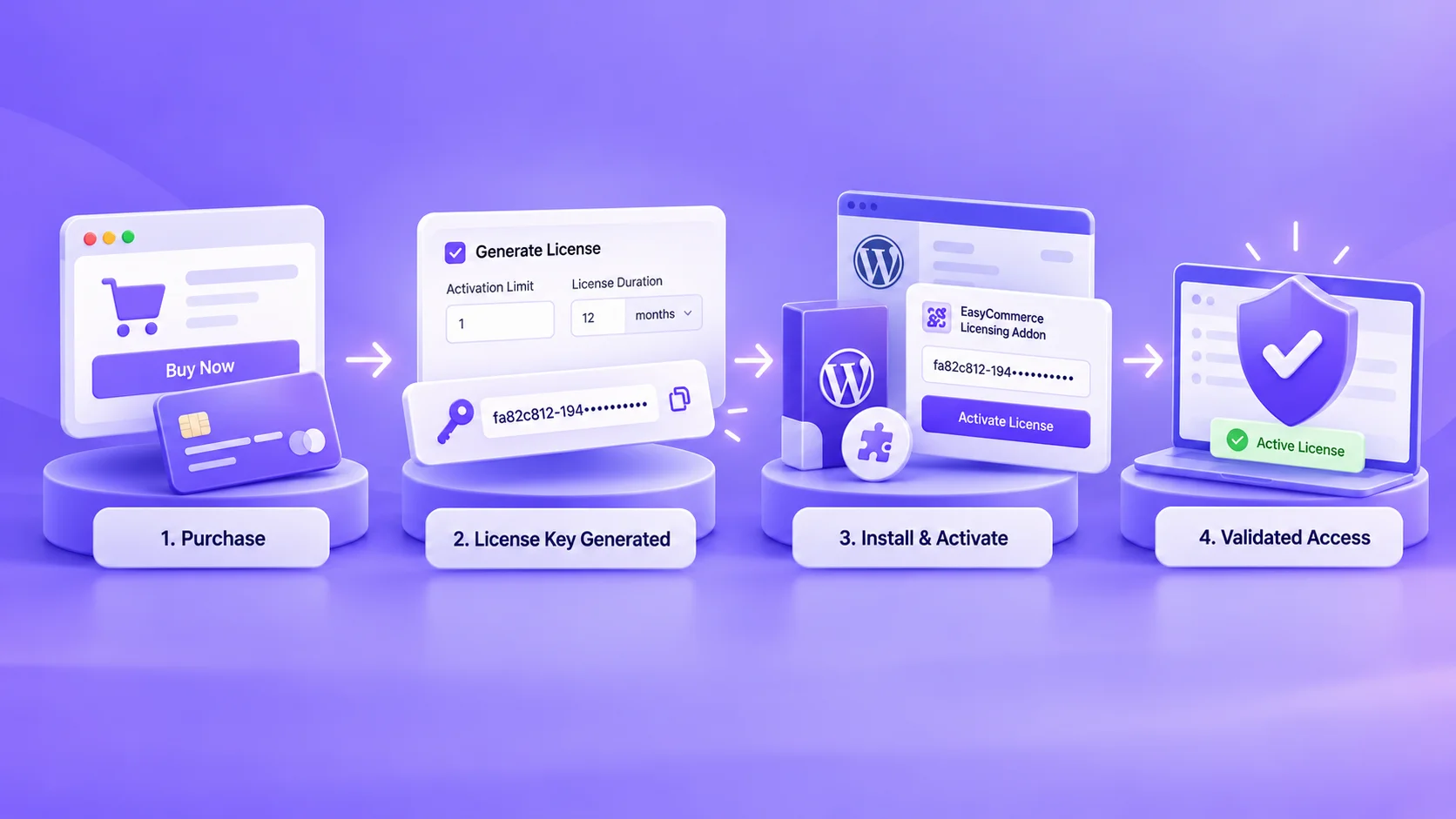
What can a software license control?
Depending on how your software integrates with its licensing system, a license can help control:
- Activations: How many sites or installations can use the license.
- Expiration: When the license stops being valid.
- Status: Whether a license is active, inactive, expired, or blocked.
- Access: Which software features or services require a valid license.
- Updates: Whether license holders can receive premium updates, when your updater supports this check.
The last two aren’t automatic consequences of issuing a key. Your software must implement the relevant checks.
Now that the licensing model is clear, let’s set up a store.
How to Sell Software Licenses with WordPress Using EasyCommerce
We’ll use a fictional WordPress plugin called FormKit Pro as our example.
The goal is to sell the plugin for $49 with a one-year license and a single-site activation limit.
By the end, we’ll have a product customers can purchase, a downloadable ZIP file, and automatically generated license keys.
Step 1: Install EasyCommerce on Your WordPress Website
First, you need a working WordPress website.
If you already have one, open your WordPress dashboard and follow these steps:
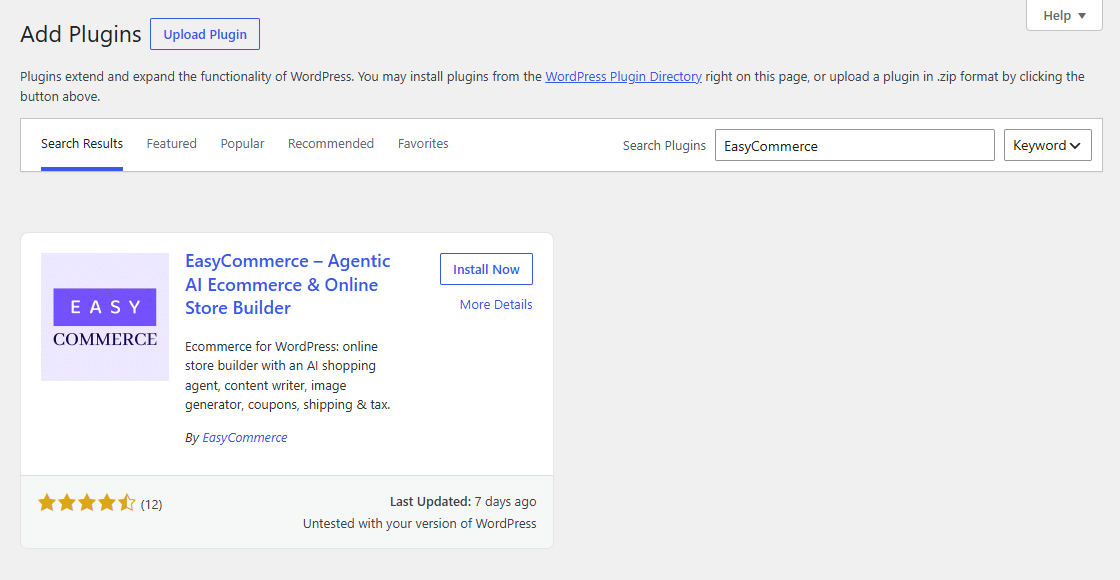
- Navigate to Plugins → Add New Plugin. Search for EasyCommerce. Click Install Now, then Activate.
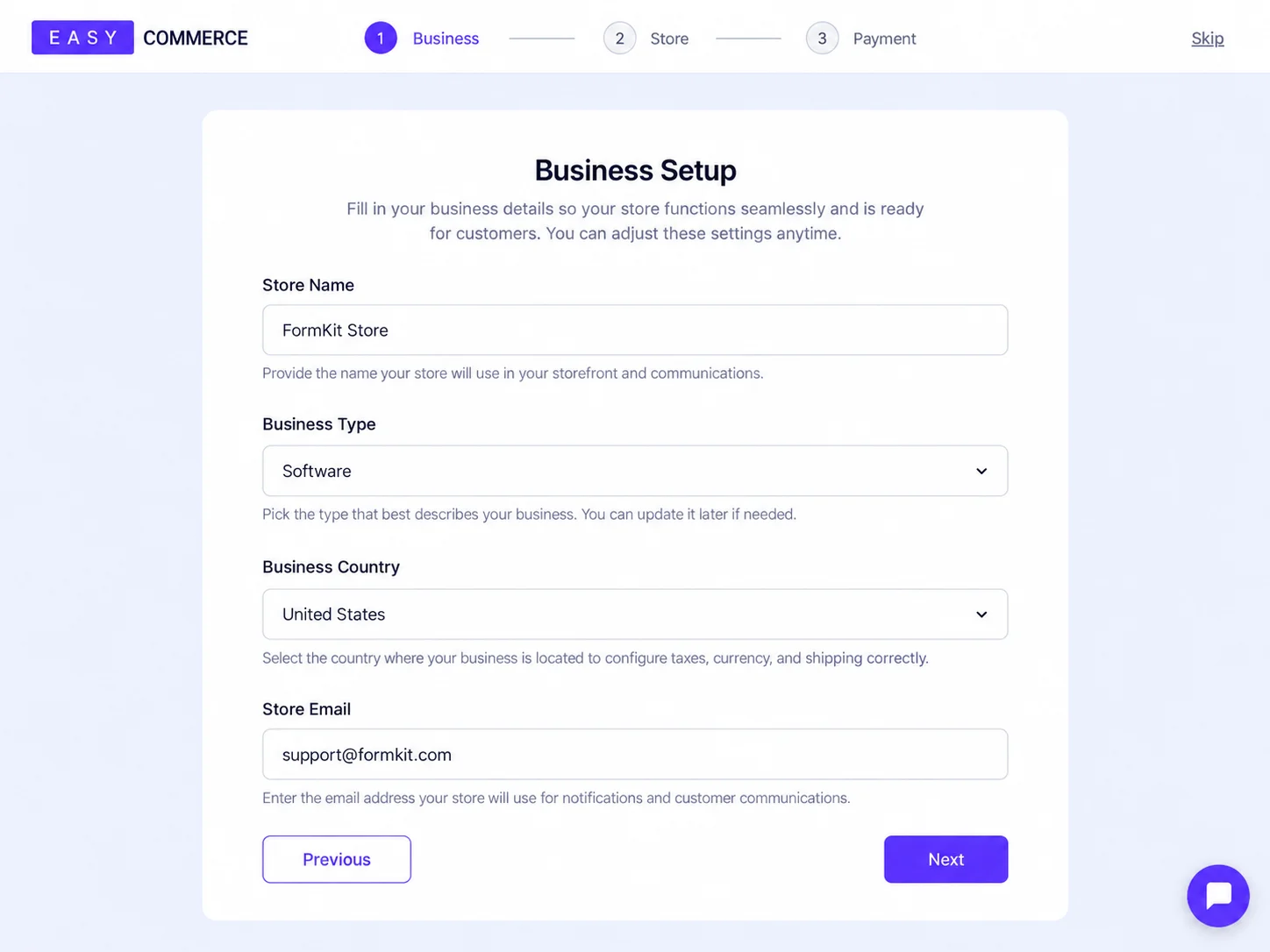
- Open EasyCommerce and complete its initial setup wizard.
During setup, you’ll configure your business information, store pages, and payment preferences.
You don’t need a complicated storefront to sell your first software product. A product page, checkout, and customer account area are enough to get started.
Once the basic store is ready, we can add license management.
Step 2: Activate EasyCommerce Pro and License Manager
EasyCommerce’s core plugin handles ecommerce operations such as products, payments, and digital downloads.
To generate software license keys and track activations, you’ll need the License Manager add-on, which is available with EasyCommerce Pro.
After obtaining EasyCommerce Pro:
- Install and activate the Pro plugin.
- Open EasyCommerce → Pro.
- Enter your registered email address and EasyCommerce Pro license key.
- Verify the license.
- Find EasyCommerce License Manager in the list of addons.
- Enable it.
You can also manage the addon from EasyCommerce → Addons.
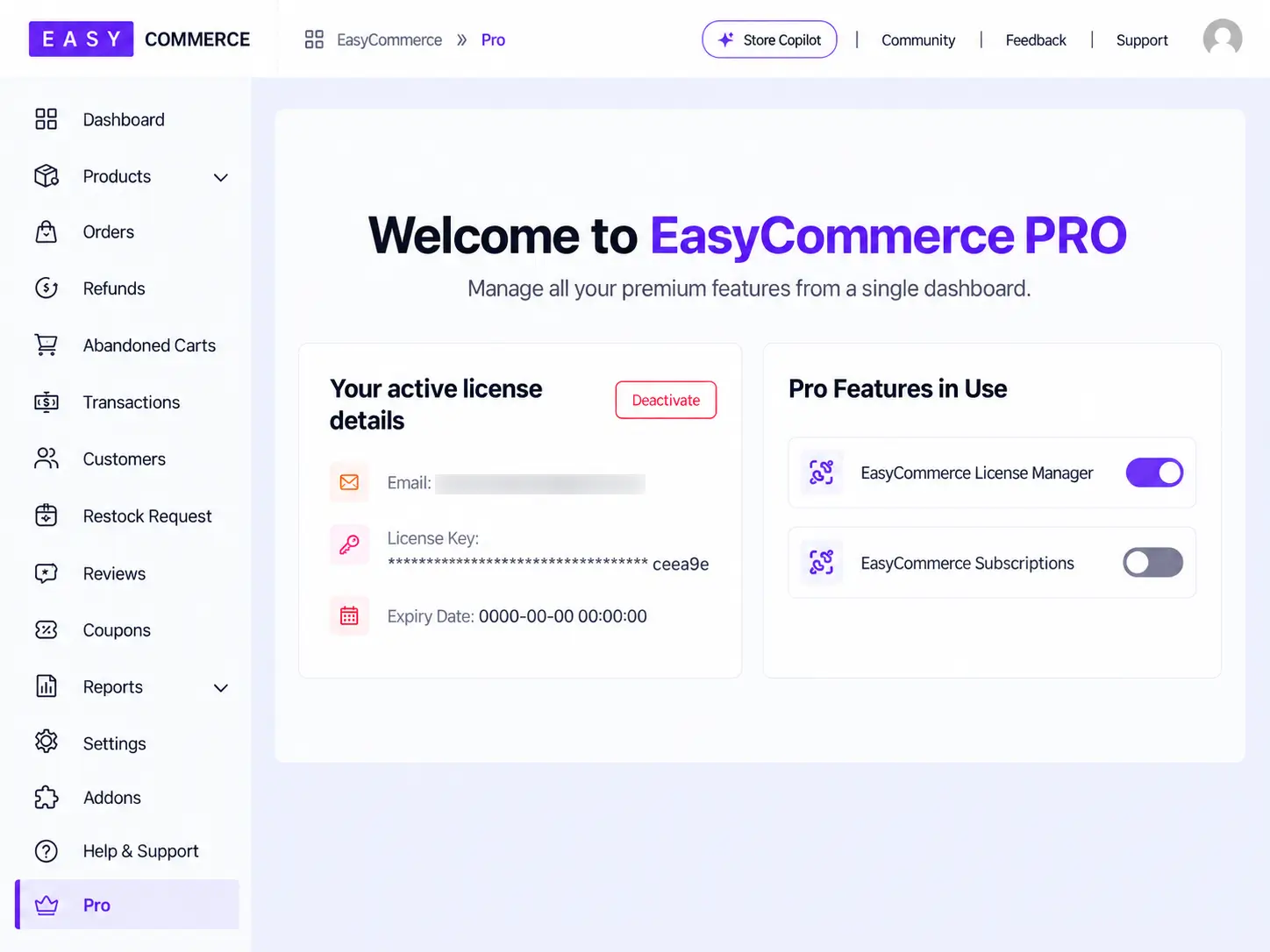
Once enabled, License Manager adds the settings required to create and manage licensed products.
You can find the official setup instructions in the EasyCommerce License Manager documentation.
Step 3: Create Your Software Product
With licensing enabled, it’s time to add the software you want to sell.
From your EasyCommerce dashboard, open Store → Products and create a new product.
For our example, we’ll enter:
- Product name: FormKit Pro
- Price: $49
- Product type: Digital/downloadable
- Description: A premium WordPress form plugin with advanced form-building features.
- Product image: A screenshot or branded preview of the plugin.
When writing the description, focus on what buyers need to know before purchasing.
For software, that usually includes supported platforms, compatibility, included files, licensing terms, and access to updates or support.
A customer buying a WordPress plugin should know whether it works with their current WordPress version, what their license permits, and what happens after purchase.
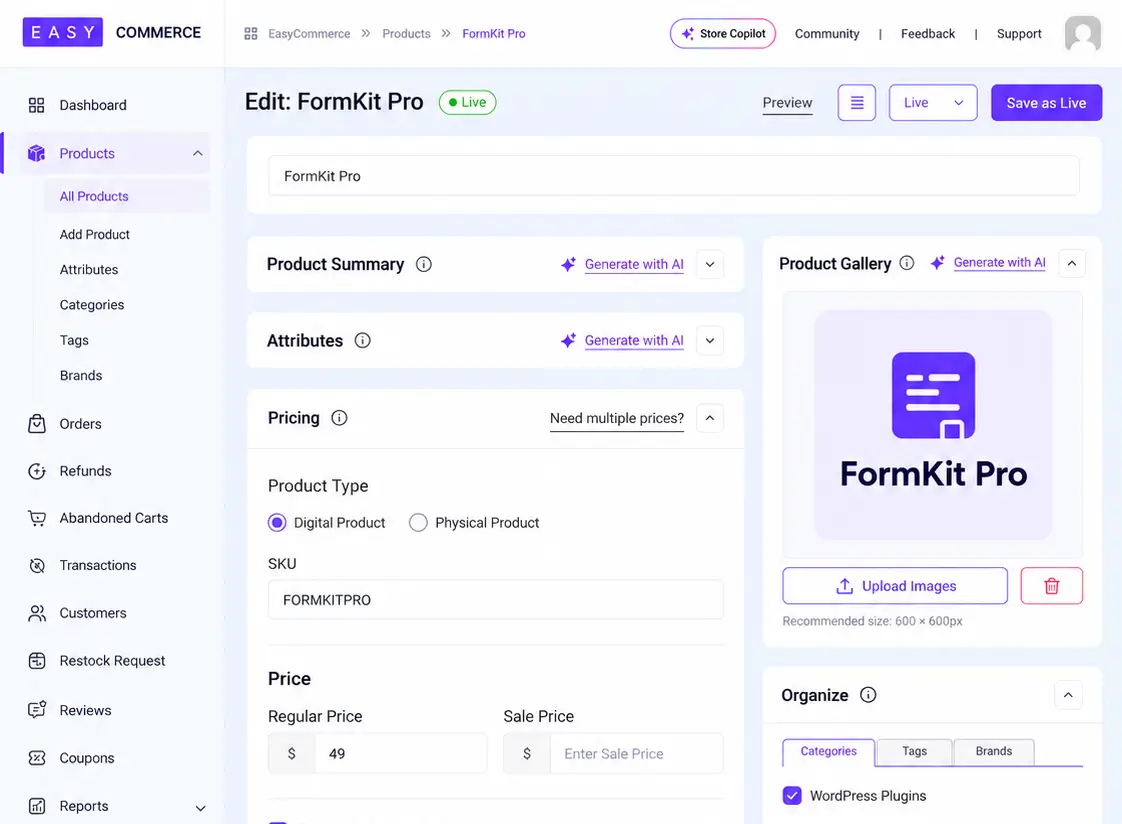
Show the product editor with the product name, price, and digital product settings visible.
Step 4: Configure License Generation and Activation Limits
This is the most important part of the setup.
Open the product’s Pricing section and find the Generate License option.
Enable it to make the product eligible for automatic license generation.
Then configure the licensing rules.
(i) Activation Limit
This determines how many installations can activate the license.
For our FormKit Pro Personal plan, we’ll set the activation limit to 1.
If you sell a Business plan, you could allow five activations instead. Choose a limit that matches what you promise on the product page.
(ii) License Duration
Next, decide how long the license remains valid.
EasyCommerce allows you to configure license duration in days, months, or years.
For this example, we’ll choose 1 year.
If you’re selling a lifetime license, configure it without a fixed expiration according to the addon’s available settings.
(iii) Downloadable Product File
Upload the software package customers will receive.
For a WordPress plugin, this would typically be an installable ZIP file.
After entering the license settings and attaching the file, click Save Product.
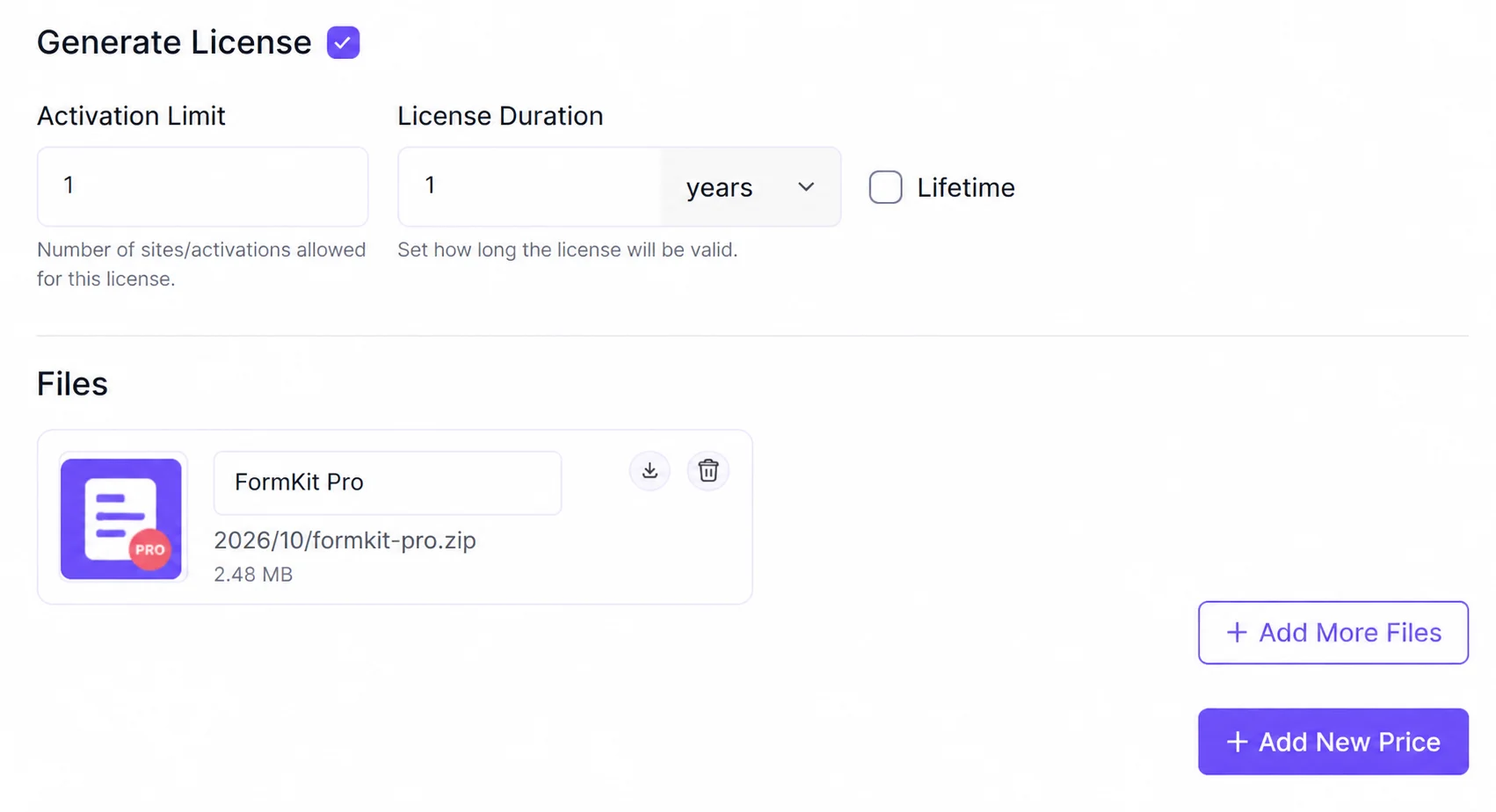
At this point, the product is ready to be sold with its configured licensing rules.
Step 5: Configure Payments and Software Delivery
Now we need a way for customers to pay.
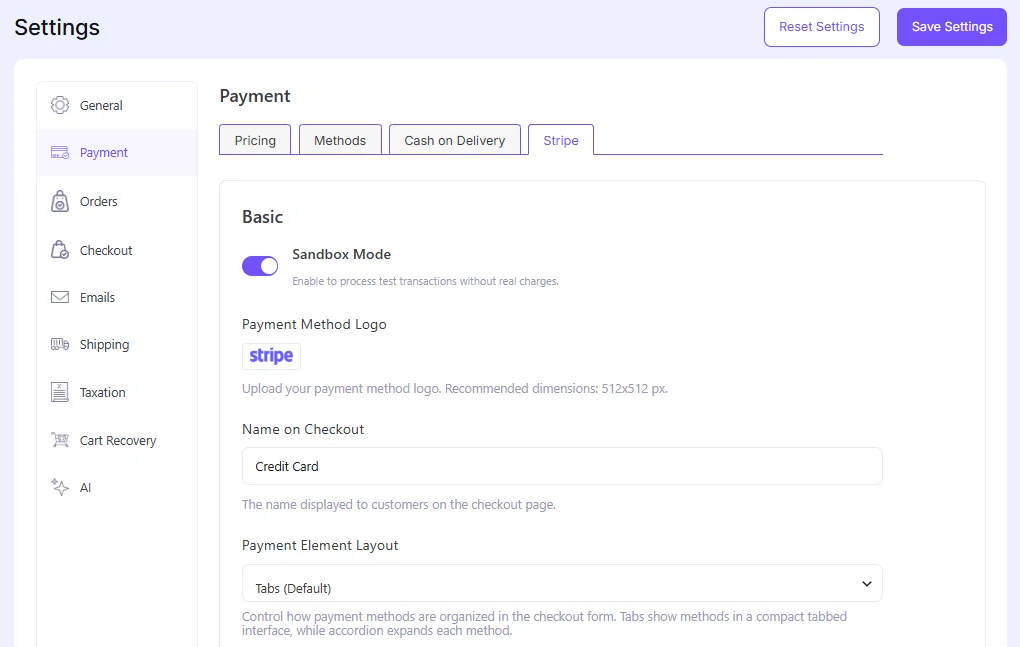
EasyCommerce supports multiple payment integrations, including Stripe and PayPal. Open your store’s payment settings and configure a gateway supported in your country.
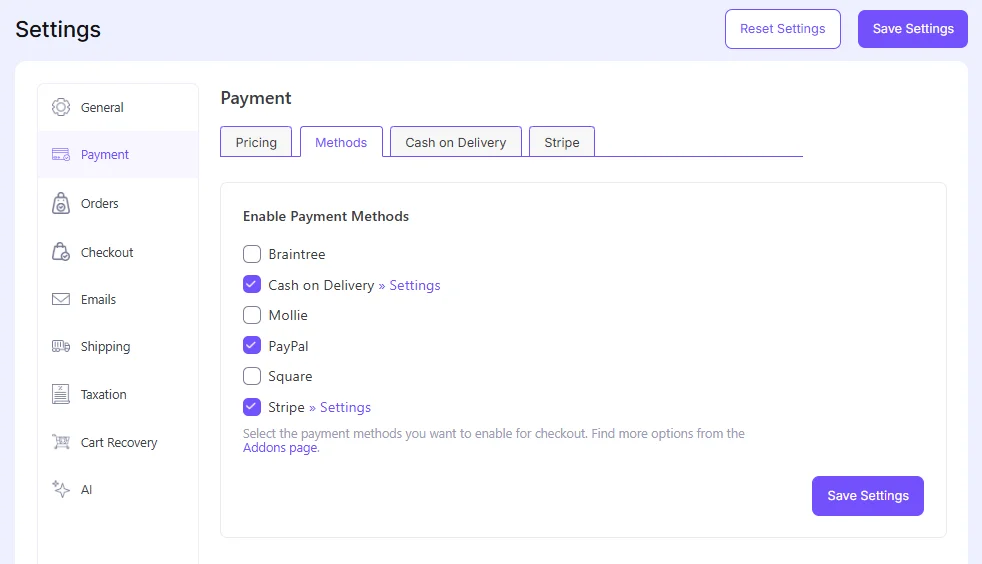
For example, if you’re using Stripe, connect your account and complete the required configuration before enabling live payments.
Next, review how customers receive their purchased software.
With EasyCommerce, digital products can be delivered through protected download links. When a qualifying order is completed, License Manager generates its associated license key.
The License Manager’s published feature documentation also describes license delivery through the order confirmation email and access through customer order history.
That gives customers two things:
- The software file they purchased.
- A unique license key associated with their order.
Make sure the customer knows where to find both. A clear delivery process can save you from answering avoidable support requests later.
Step 6: Test the Software Purchase and License Generation
Before publishing your software product, place a test order.
This is especially important when selling licensed software because the checkout may work even if part of the licensing process is misconfigured.
Here’s what I’d test:
- Open the software product page as a customer.
- Add the product to the cart and proceed to checkout.
- Complete a purchase using your payment gateway’s test mode.
- Check the order confirmation and available download link.
- Verify that the purchase generated a license key.
- Confirm that the license has the correct activation limit and expiration date.
Then open Store → Licenses in EasyCommerce. You should find the license associated with your test order.
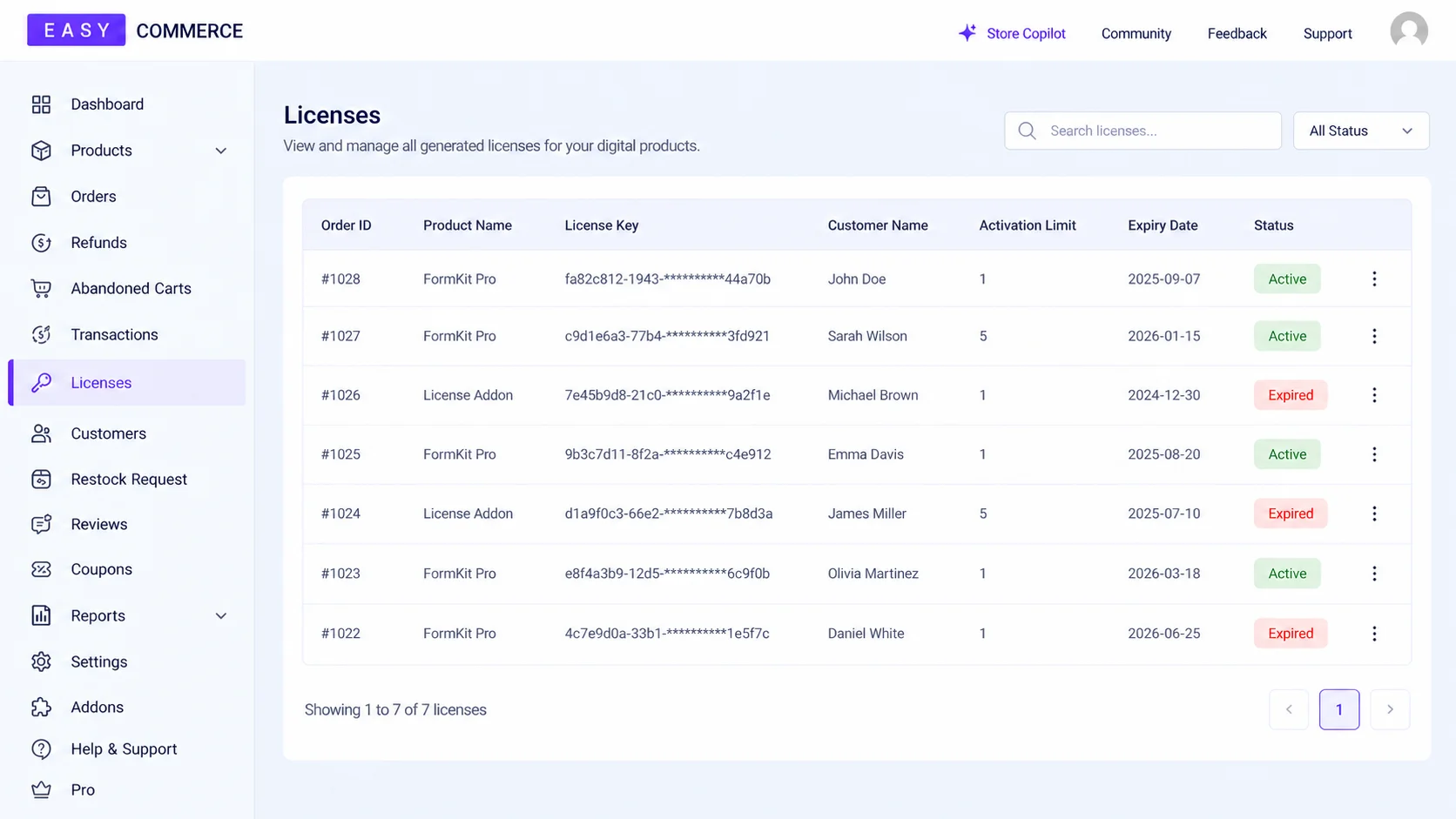
If the order exists but the expected license doesn’t, check that License Manager is enabled, Generate License is selected for the product, and the order has reached the required completion state.
Don’t move to live sales until the purchase and licensing workflow both work.
Step 7: Manage Customer Licenses from WordPress
Selling a software license is only the beginning.
Customers may change websites, request an activation reset, or contact you because their software says a license is invalid.
Rather than searching through past orders manually, you can manage licenses centrally. Navigate to Store → Licenses.
The license list shows information such as the associated order, product, customer, license key, activation limit, expiry date, and current status.
To inspect a particular license, open its View action.
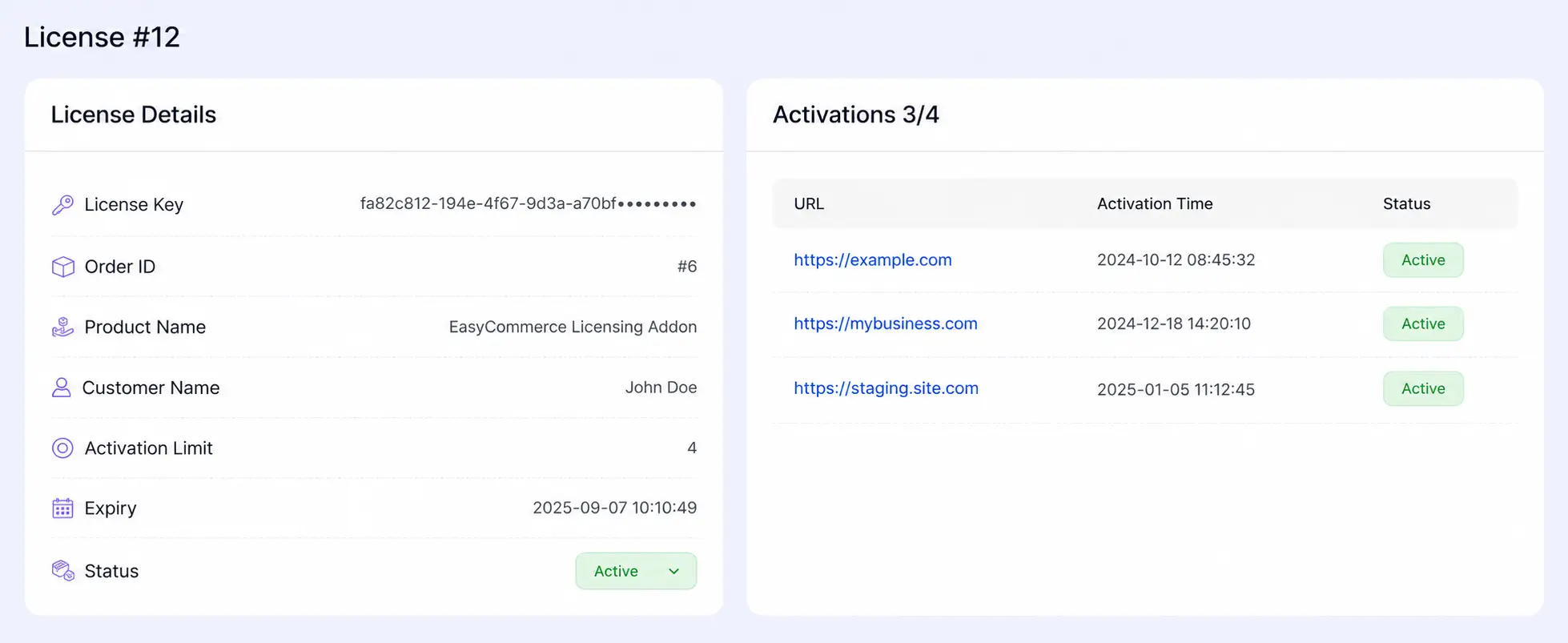
You’ll find the license details and activation history, which can help you investigate customer issues.
For example, imagine a customer purchased a one-site license but moved their website to a new domain.
You can review the license’s activation history to understand why the new activation is being rejected. Depending on the situation, you can update the license’s activation limit or manage its existing activations.
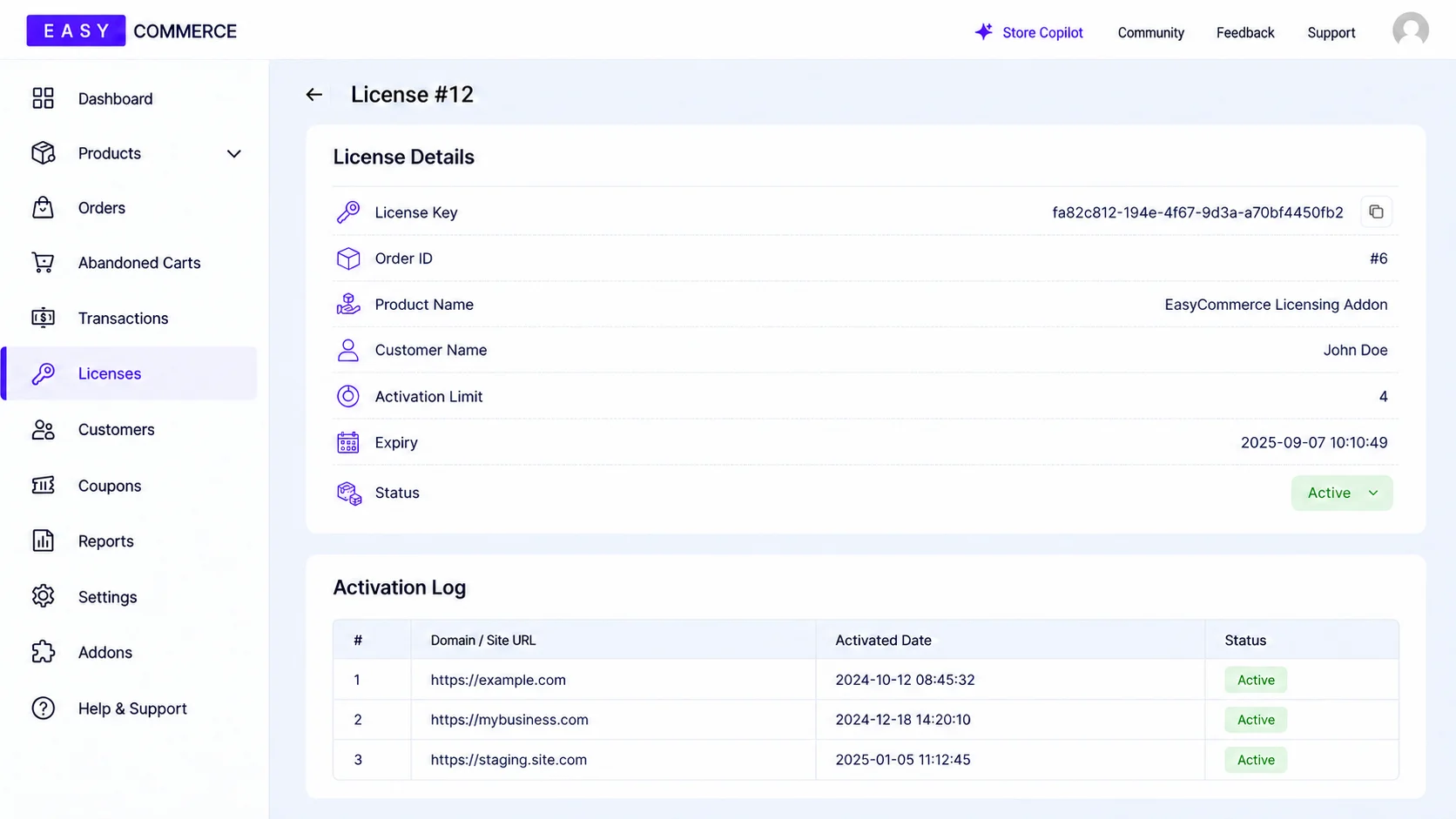
EasyCommerce also supports license status controls, allowing administrators to manage licenses that need to be blocked or otherwise changed.
This keeps licensing information connected to the WordPress store where the customer made the purchase.
How Does Your Software Validate a License Key?
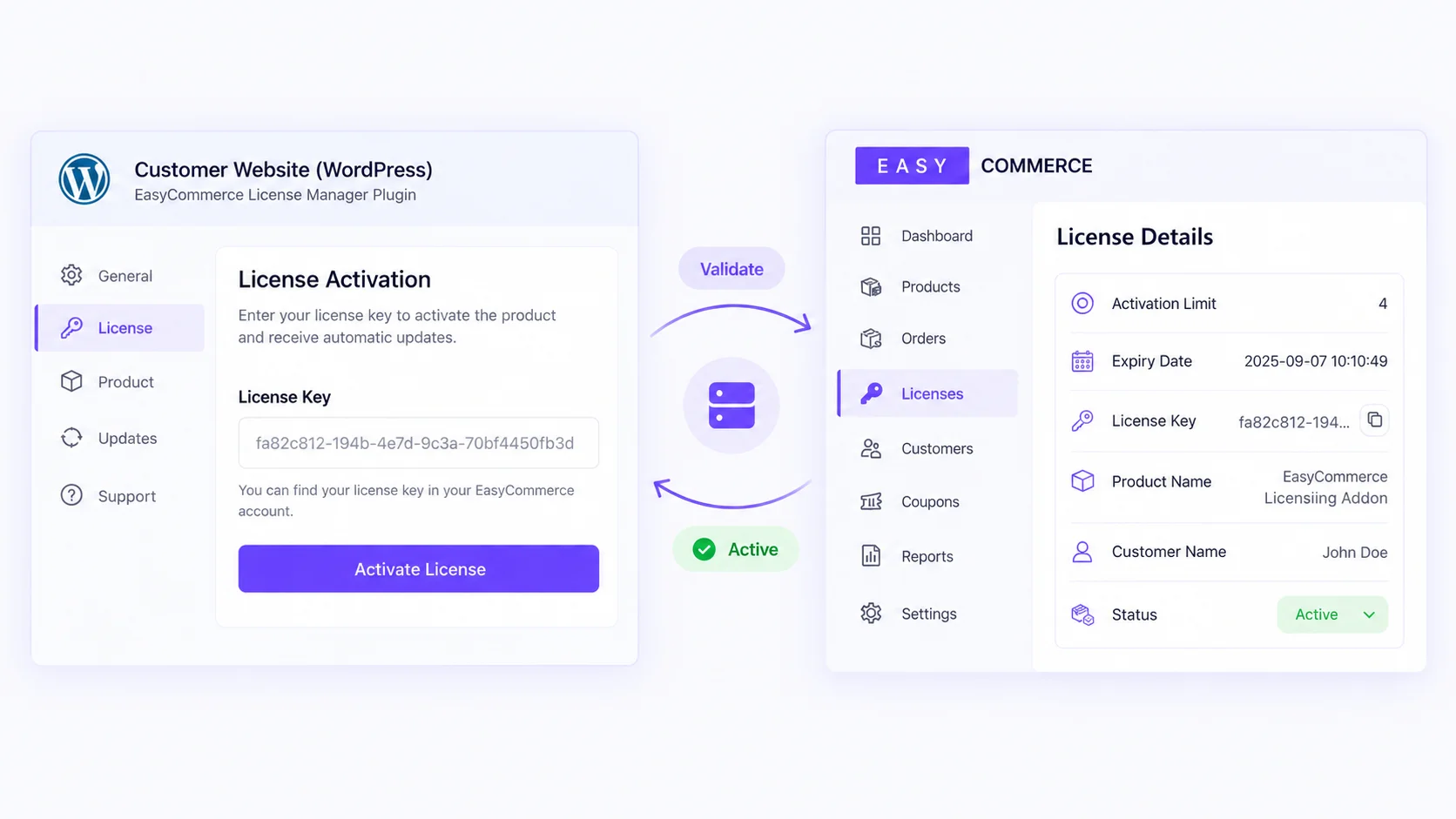
So far, we’ve set up the selling side: checkout, license generation, file delivery, and license management. But there’s one more part if you’re selling software that needs to activate on a customer’s installation.
Your software needs to communicate with the licensing server.
For a WordPress plugin, the process generally works like this:
- The customer installs your plugin on their website.
- They open its license settings and enter the purchased license key.
- Your plugin sends an activation request to your store.
- The licensing server checks the license details and activation rules.
- Your plugin receives the response and handles activation accordingly.
EasyCommerce License Manager provides a REST API for this integration.
The base URL follows this format:
https://your-store.com/wp-json/easycommerce/v1For example, the license activation endpoint is:
POST /licenses/{key}/activateThe request includes details such as the license key, customer email, product identifier, and site URL. EasyCommerce also documents endpoints for deactivating licenses and retrieving their information.
Keep it minimal and technically accurate.
An important point for developers. License Manager provides the server-side licensing system, but your software still needs its own activation and validation integration.
A valid license key alone does not automatically prevent someone from copying or running your plugin. Your software needs to check the license and apply whichever restrictions are appropriate.
For implementation details, refer to the EasyCommerce License Manager API documentation.
Which Software Licensing Model Should You Choose?
There isn’t one licensing model that works for every software business.
A developer selling a simple utility plugin has different requirements from a company selling a desktop application or premium SaaS-connected software. The most common licensing models include:
| Model | How it works | Suitable for |
| Single-site license | Allows one website activation | Individual WordPress users |
| Multi-site license | Allows several website activations | Agencies and freelancers |
| Annual license | Expires after a year unless extended | Products with continuing support or services |
| Lifetime license | Has no fixed license expiration | One-time software offerings |
| Tiered license | Different plans have different limits | Software with several customer segments |
These models describe the licensing rules you may offer. They don’t all imply automatic recurring billing.
For example, a one-year license and an automatically renewing subscription are not the same thing. A license may expire after a year without the customer being charged again.
If you want automatic annual renewals, you’ll need a compatible subscription billing setup and a process that updates the license entitlement after successful renewal.
A practical pricing example
Imagine you’re launching a premium WordPress plugin for freelancers and small agencies.
You could structure it like this:
| Plan | Example price | Sites | Validity |
| Personal | $49 | 1 | 1 year |
| Business | $99 | 5 | 1 year |
| Lifetime | $199 | 1 | Lifetime |
These prices are illustrative.
The idea is to make the difference between plans easy to understand. Someone running one website shouldn’t need to compare ten features just to understand which license to buy.
Similarly, if you’re offering several license options, clearly explain whether they affect activation limits, product features, updates, support, or expiration.
That clarity matters as much as the underlying license management system.
5 Common Mistakes to Avoid When Selling Software Licenses
Getting software online is relatively straightforward. Problems usually appear when customers start installing, activating, and updating it.
Here are a few things worth checking before launch.
1. Selling a download without explaining the license
A customer might assume they can install the software on unlimited websites unless your product page says otherwise.
State the activation limit, license duration, and relevant usage conditions before checkout.
2. Not testing activation limits
Don’t stop after confirming that a license key was generated.
If your software validates licenses, test what happens when a customer reaches the activation limit. The system should respond predictably, and your software should display a useful message.
3. Confusing license expiration with subscription renewal
An annual license doesn’t necessarily include automatic billing.
Explain whether customers must renew manually and what happens when the license expires.
4. Leaving the download and installation experience unclear
Provide the correct software file, installation instructions, and a place to enter the license key.
For WordPress plugins, a short installation guide can be more useful than a lengthy welcome email.
5. Treating licensing as complete protection against piracy
Activation controls can reduce unauthorized use and help enforce your licensing terms, but they don’t guarantee that software files cannot be redistributed or modified.
Focus on making legitimate purchases and activations easy while applying reasonable controls.
Why Use EasyCommerce to Sell Software Licenses?
You can build a WordPress software store with different combinations of ecommerce and licensing tools.
EasyCommerce is useful when you want product management, checkout, payments, digital delivery, and software licensing connected within the same WordPress environment.
Its core ecommerce plugin handles sales, while License Manager adds license generation, activation tracking, expiration controls, and REST API access.
That gives software sellers a central place to manage both orders and licenses.
The trade-off is worth understanding. License Manager is a premium add-on, and developers still need to integrate license validation into their software when they need to enforce activation.
For a new WordPress plugin or theme business, though, this approach can be simpler than building and maintaining a separate licensing server from scratch.
Related guides: selling digital products with WordPress, best digital products to sell, and building an ecommerce store with EasyCommerce.
Start Selling Software Licenses with WordPress
Selling licensed software involves more than uploading a ZIP file and collecting payments.
You need a reliable way to deliver purchases, issue license keys, manage activation limits, and help customers when something changes.
With WordPress and EasyCommerce, you can manage the ecommerce side and software licensing from one place.
Start by creating your software product, configuring License Manager, and testing the complete buying experience. Once the basics work, you can build out additional plans, customer documentation, and license validation inside your software.
Frequently Asked Questions
Yes. WordPress can be used to sell software license keys when paired with a compatible ecommerce and licensing system. EasyCommerce and its License Manager addon allow you to sell downloadable software, generate license keys, and track activations.
Yes. When a qualifying licensed product order is completed, EasyCommerce License Manager can generate a unique key associated with the purchase. You can then manage that license from the WordPress dashboard.
Yes. License Manager lets you set activation limits, including a single-site limit. Your software must integrate with the licensing API to enforce those restrictions during activation.
Yes. License Manager provides REST API endpoints for license activation, deactivation, and retrieving license information. Developers can integrate these endpoints into WordPress plugins or other supported software.
No. License Manager is a premium add-on that requires an eligible EasyCommerce Pro license. The core EasyCommerce plugin can be used for ordinary digital product sales without the licensing add-on.
