Support
 Docs
Docs Roadmap
 Changelog
Lifetime Deal ending soon - only 200 copies left
Claim LTD →Agentic Commerce
AI that chats, searches, and completes full purchases.
Admin AI assistant to manage your store by chat.
Free in-dashboard AI help, always available.
Fast and accurate product search results.
Let customer shop faster with voice search.
Sell on Messenger and WhatsApp with the same AI agent.
Connect Claude, Cursor, and any MCP client to your store.
Increase upsell with suggestions that connects.
Generative AI
Generate instant product descriptions.
Create high-res. images from simple prompts.
Build store/product templates in seconds.
Transform existing product photos with AI editing.
Auto-create product options from product name.
Ecommerce Features

Create and control your entire product catalog seamlessly.

Offer sizes, colors, and options with flexible variations.

Sell and auto-deliver downloadable files instantly.

Receive, track, and fulfill orders quickly and accurately.

Manage customer profiles, history, and details in one place.

Quick, clean, and hassle-free checkout experience.

Offer your customers diverse and secure payment options.

Automate the logistics with accurate shipping classes.

Simplify tax collection and compliance without the stress.

Recover lost sales with automated cart reminders.

Create and manage discount coupons that inspire sales.
Build trust with star ratings and verified reviews.

All your business data together for smarter decisions.

Engage customers with impactful email campaigns.
Give shoppers a personal account and order area.
Keep your store and customer data safe and protected.
Build in Test mode, then flip your store Live in one click.
Builder & Customization
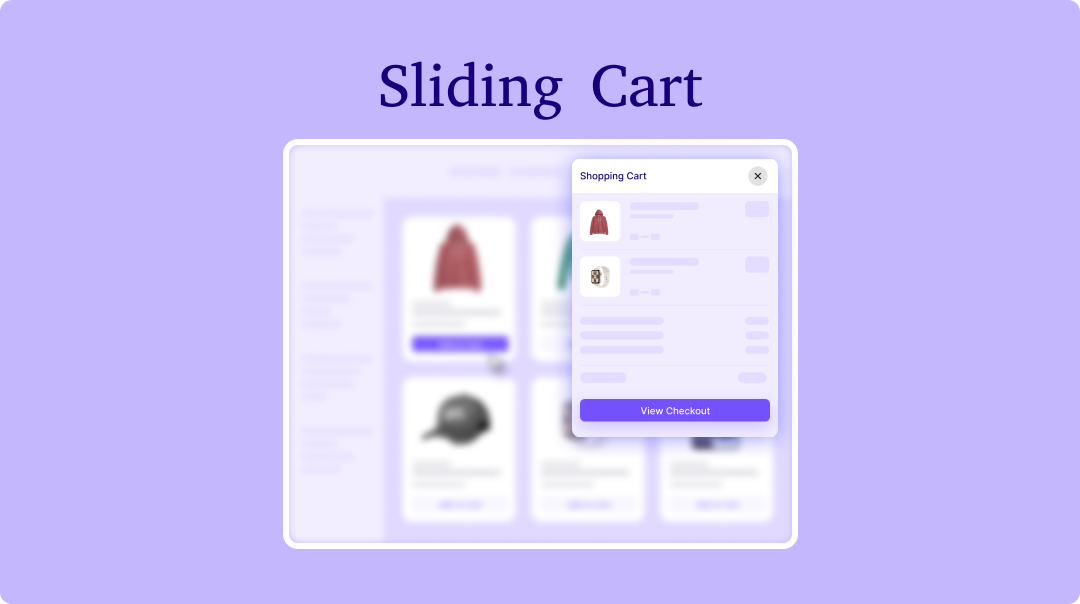
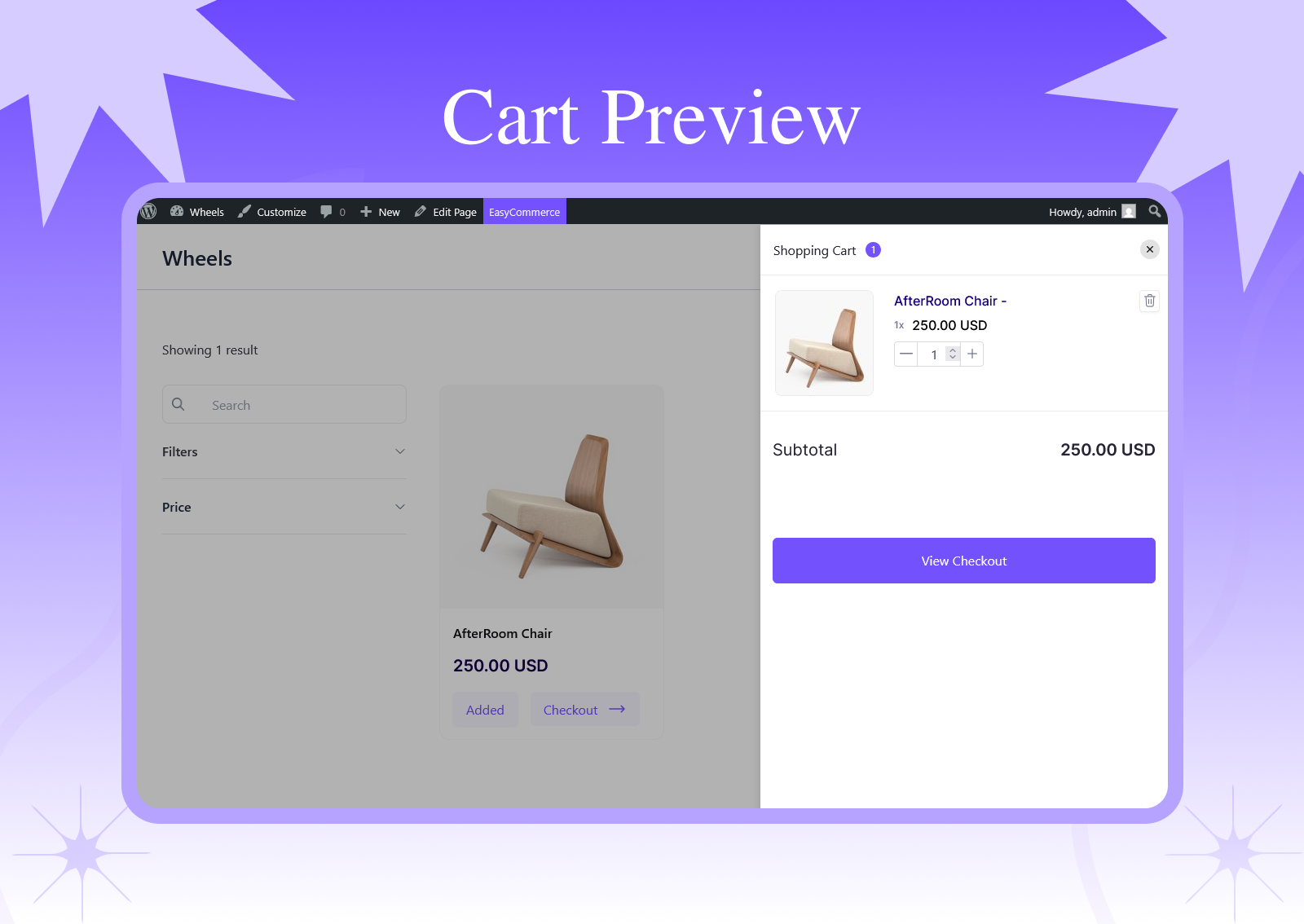
When shoppers are forced to leave the page just to view or update their cart, it creates unnecessary friction. And the friction leads to lost sales. Every extra click or page load increases the chances that a customer will abandon their purchase.
Sliding Cart for EasyCommerce solves this by keeping your customers in the shopping flow. It adds a smooth, sliding side cart that gives instant access without interrupting their browsing experience.
Instead of redirecting users to a separate cart page, this addon lets customers view, update, and manage their cart right from the page they are on. A small icon at the top or bottom of your website gives prompt access to the cart, keeping it visible subtly and engagingly.
Responsive Design: Works perfectly on desktop, tablet, and mobile devices
Real-time Updates: Cart contents update instantly when items are added or removed
Smooth Animations: Elegant slide-in/slide-out animations for better UX
Quantity Management: Easy quantity adjustment directly from the cart
Product Thumbnails: Visual product representation in the cart
Price Calculations: Automatic subtotal calculations
Checkout Integration: Direct links to the checkout process
EasyCommerce Side Cart is designed to be flexible. Developers and store owners can customize styling, animations, triggers, and functionality.
1. Trigger the Slide Cart Programmatically
You can open the slide cart from any custom button or link by adding this class:
<button class="ec-slide-cart-class">View Cart</button>
Any element with this class will immediately activate the slide-in cart.
2. CSS Classes for Styling
You can override the cart’s appearance by targeting the following selectors in your theme or custom CSS:
/* Main cart wrapper */
.ec-slide-cart-wrapper
/* Background overlay */
.ec-slide-cart-overlay
/* Sliding panel box */
.ec-slide-cart-box
/* Cart header area */
.ec-slide-cart-header
/* Main scrollable content */
.ec-slide-cart-content
/* Individual cart item */
.ec-slide-cart-item
/* Cart footer section */
.ec-slider-cart-bottom
These control layout, spacing, colors, fonts, and animations.
3. JavaScript Events
The slide cart listens to EasyCommerce’s built-in events. To execute custom scripts whenever the cart updates:
jQuery(document).on('easycommerce-cart-updated', function() {
console.log('Cart updated!');
});
Step 1: Activate the Addon
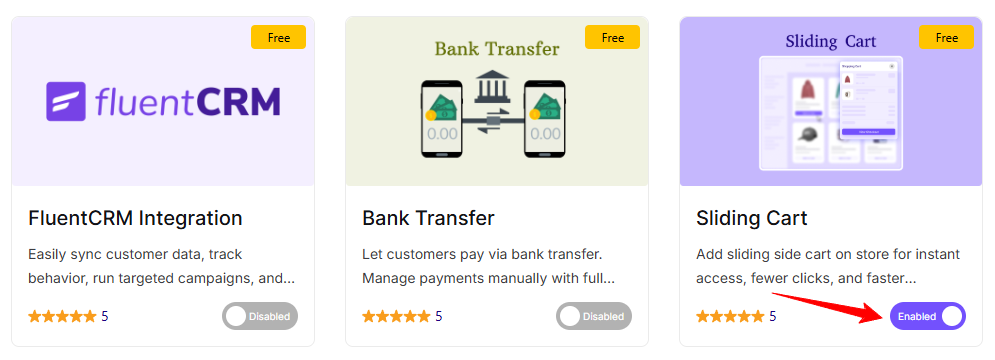
First, go to EasyCommerce → Addons and turn on the Sliding Cart addon.
Step 2: Add the Cart Trigger
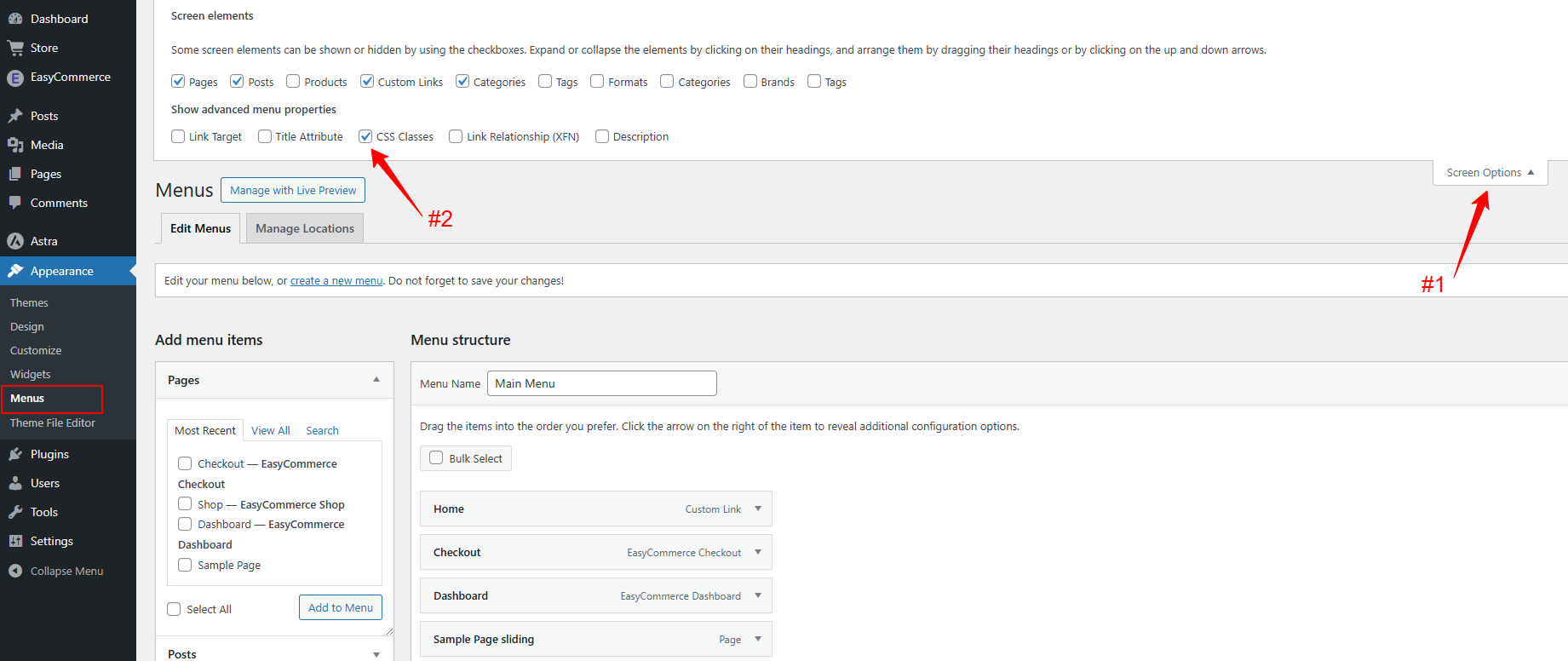
Next, choose the element that should open the sliding cart, like a menu item, button, or cart icon. Simply add the CSS class ec-slide-cart-class to that element. For menu items, enable “CSS Classes” in Screen Options and insert the class there.
Step 3: Test the Sliding Cart
Finally, visit your site and click the trigger to make sure the sliding cart opens smoothly and everything works as expected.