


The Categories section in EasyCommerce allows you to organize your products into structured groups, making it easier for customers to browse and find items in your store.
Accessing Categories
You can manage product categories from:
Dashboard → Products → Categories
This page is divided into two main sections:
- Categories List (Left Panel)
- Add New Category (Right Panel)
Categories List
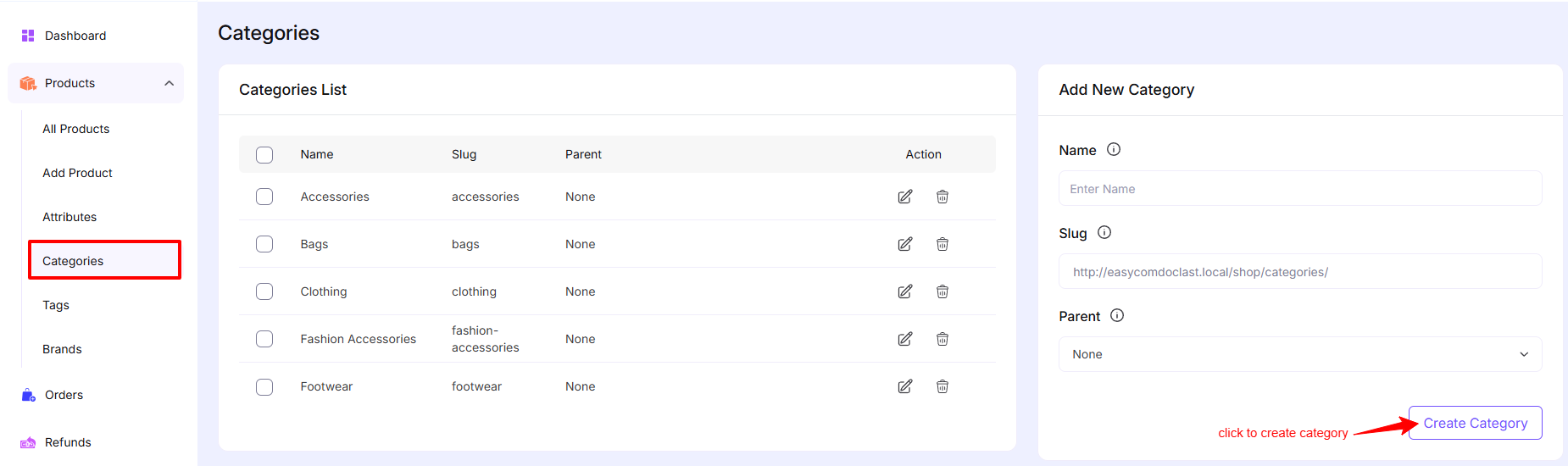
The Categories List displays all existing product categories in a table format.
Table Columns
- Name
The name of the category visible to customers. - Slug
A URL-friendly version of the category name.
Example:fashion-accessories - Parent
Shows if the category is a subcategory of another category.
If no parent is assigned, it displays None. - Action
Allows you to:- Edit category
- Delete category
Bulk Selection
You can select multiple categories using the checkbox to perform bulk actions (if available).
Add New Category
Use the right panel to create a new category.
Fields
- Name
Enter the category name.
Example: Electronics, Clothing - Slug
Automatically generated from the name but you can customize it.
This is used in the category URL. - Parent
Select a parent category to create a hierarchical structure.
Example:- Parent: Clothing
- Child: Men’s Clothing
Create Category
Click the Create Category button to save the new category.
Editing a Category
To edit an existing category:
- Click the Edit icon in the Actions column
- Update the necessary fields
- Save changes
Deleting a Category
To delete a category:
- Click the Delete icon
- Confirm the deletion
Note: Deleting a category does not delete the products inside it but they may become uncategorized.
Was this doc helpful?