


Product Recommendations make your shop more engaging for buyers. Follow these simple steps to activate and configure the Product Recommendations feature on your EasyCommerce store:
Step 1: Activate the Addon
- Log in to your WordPress Dashboard.
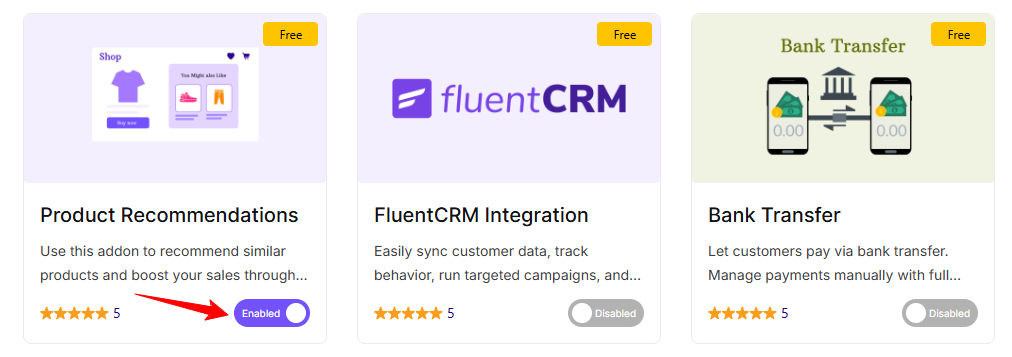
- Go to EasyCommerce > Addons section and make it “Enabled” under the Product Recommendations addon it.
If you are facing any difficulties, read this documentation on how to install and activate addon on EasyCommerce.
Step 2: Configure Recommendation Settings
- Go back to the Dashboard.
- Navigate to Store > Settings. Click on the Recommendations tab.
- Enable the feature Product Recommendations by turning on the toggle switch.
- Next select Product Recommendations from available taxonomies like (category,Brand) and after that set the maximum number of recommendations you want to set.

Step 3: Customize the Recommendation Criteria
- Choose how you want to show recommendations:
* By Category – show products from the same category.
* By Brand – show products from the same brand.
- Set the Recommendation Limit – Set the limit/number of related products that should appear under each product page.
- Click Save Settings to apply the changes.
That’s it! Your store will now display relevant product suggestions under each product page, helping customers discover more and buy more.
Was this doc helpful?