


How to Add a Shipping Plans in EasyCommerce
You need to configure shipping plans to apply delivery charges based on specific areas. Once they’re set, the system will automatically calculate and apply the shipping cost when a customer provides a delivery location within the defined areas.
In this guide, you will learn how to add shipping plans for your store using EasyCommerce.
Step 1: Navigate to Shipping Settings
Go to EasyCommerce EasyCommerce > Settings > Shipping and then Settings tab.
Step 2: Choose Shipping Countries
Select the countries you wish to serve by scrolling through the list or typing the country name. Click Save Settings button to store the changes.
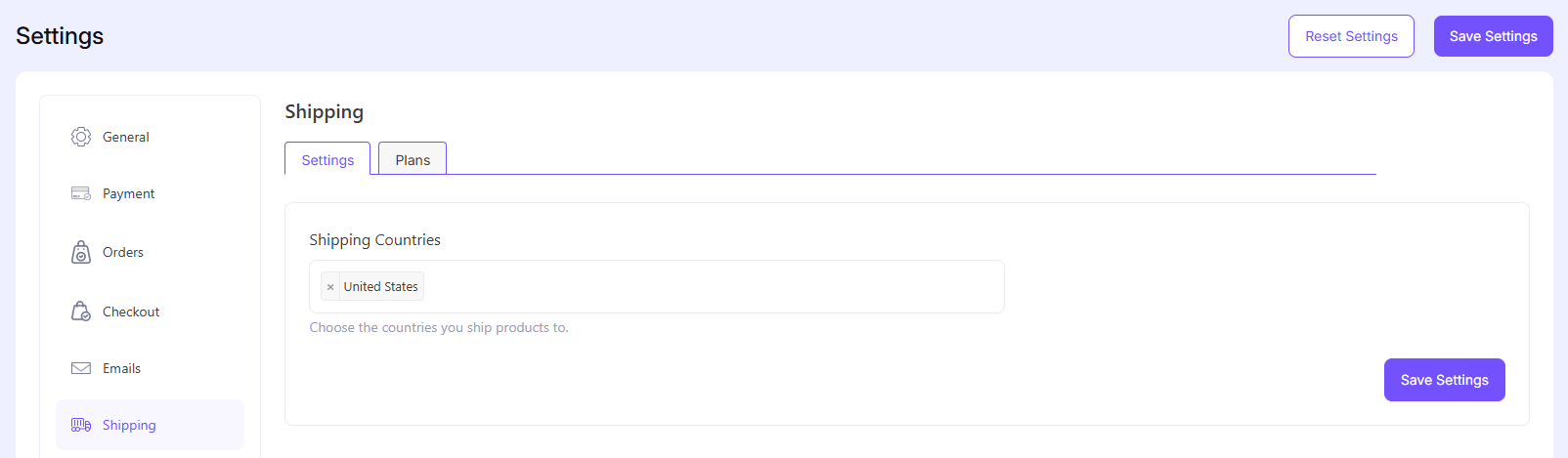
To remove a selected country, simply click the cross icon previous to its name.
Step 3: Add Shipping Plans
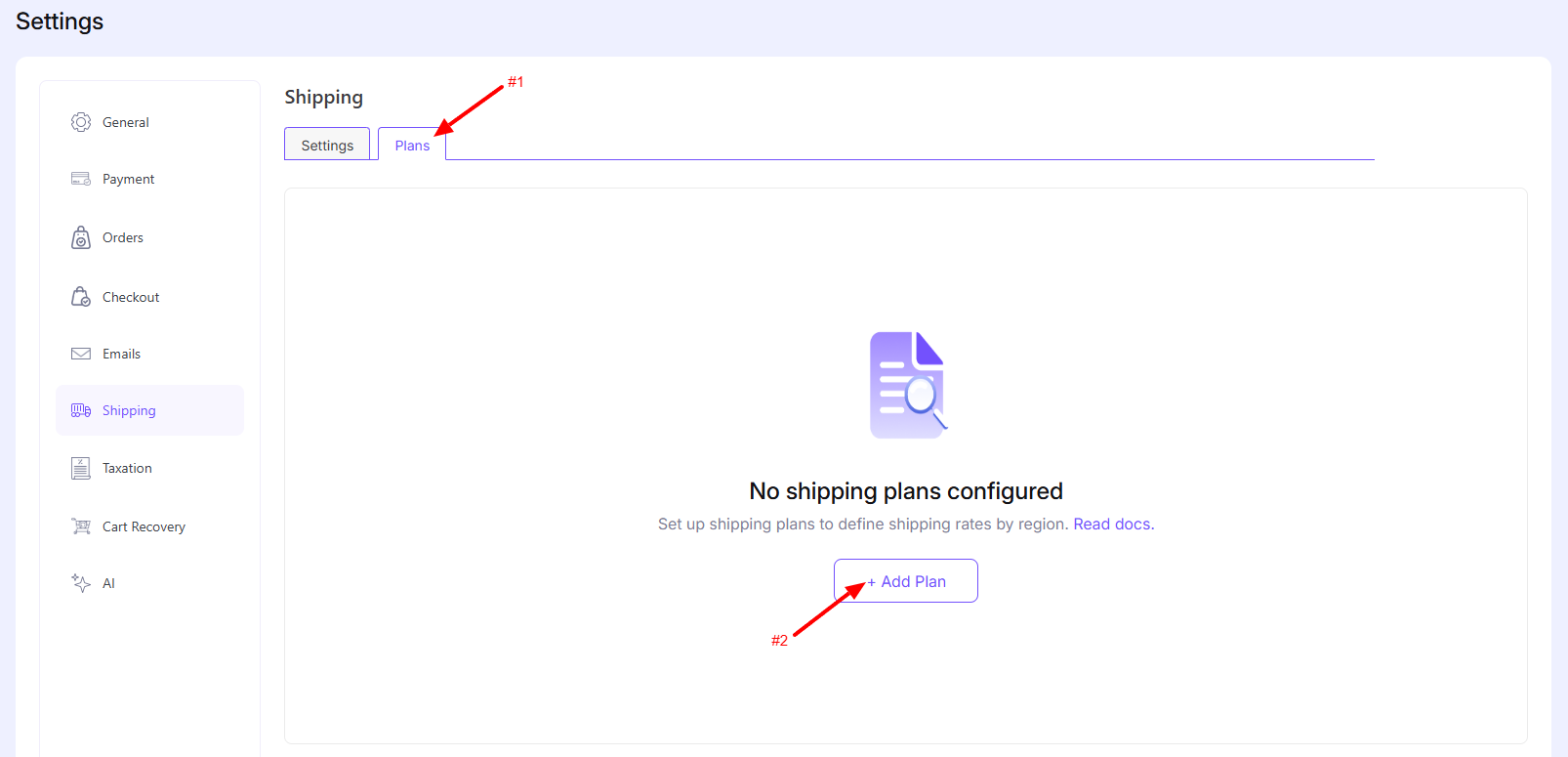
Now switch to the Plans tab to create a plan. You will find the list empty plan when accessing it for the first time. Click the Add Plan button to open a new plan.
Step 4: Enter Shipping Details
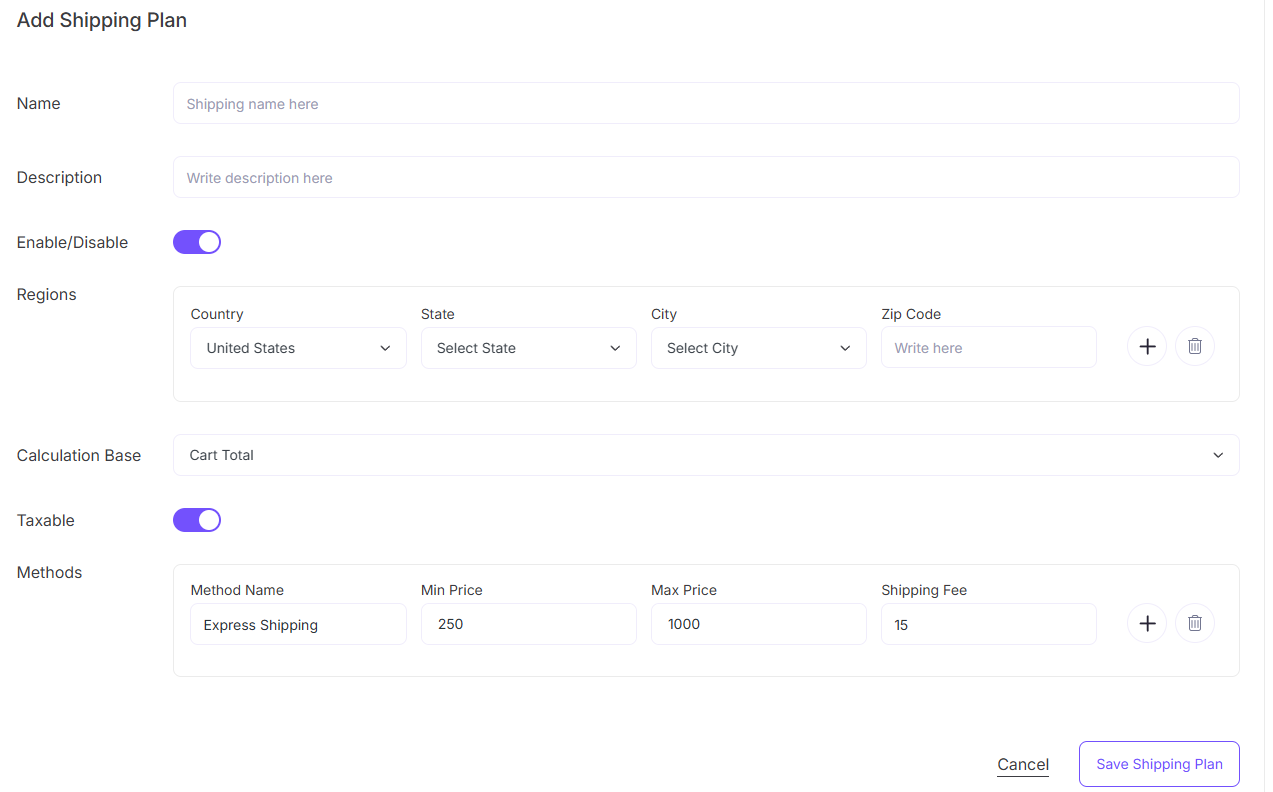
Now you need to fill up Name, Description, Status, Regions, Taxable, Calculation Base, Plans etc. fields to set up this shipping plans.
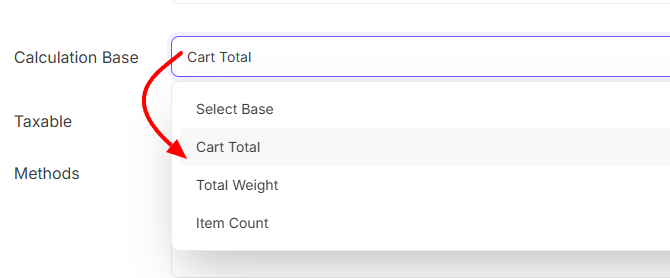
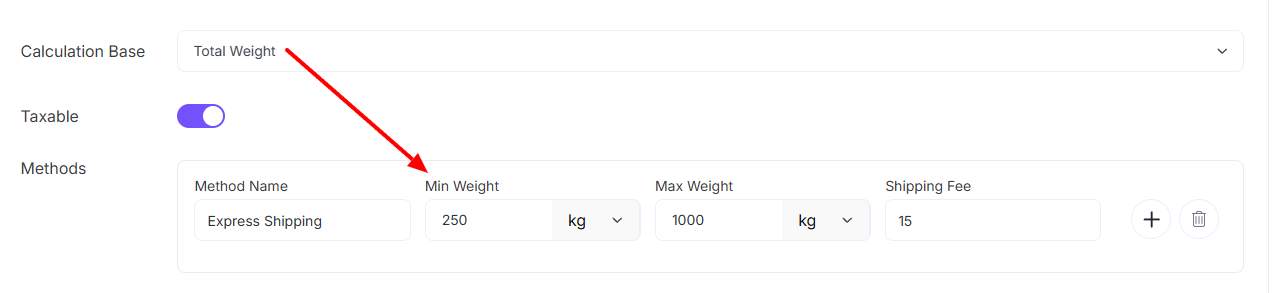
Calculation Base: The Calculation Base determines how the shipping fee will be calculated in EasyCommerce. Depending on the selected base, the fields inside the Methods section will automatically change.
Available Options:
- Cart Total – Shipping is calculated based on the total price of the cart.
- Total Weight – Shipping is calculated based on the total weight of items in the cart.
- Item Count – Shipping is calculated based on the number of items in the cart.
Methods
Depending on the selected Calculation Base, you can define ranges such as Min and Max (cart total, weight or item count) and set the Shipping Fee for that range.
You can add multiple rules by clicking the + button.
Taxable Option
Enable the Taxable toggle if the shipping fee should be included in tax calculations. Click the link to know more Taxation Settings
Step 5: Save Shipping Plan
Click ‘Save Shipping Plan’ to complete setting up the shipping plan.
Shipping Plans Control
You can access and manage all your shipping plans from the Plans
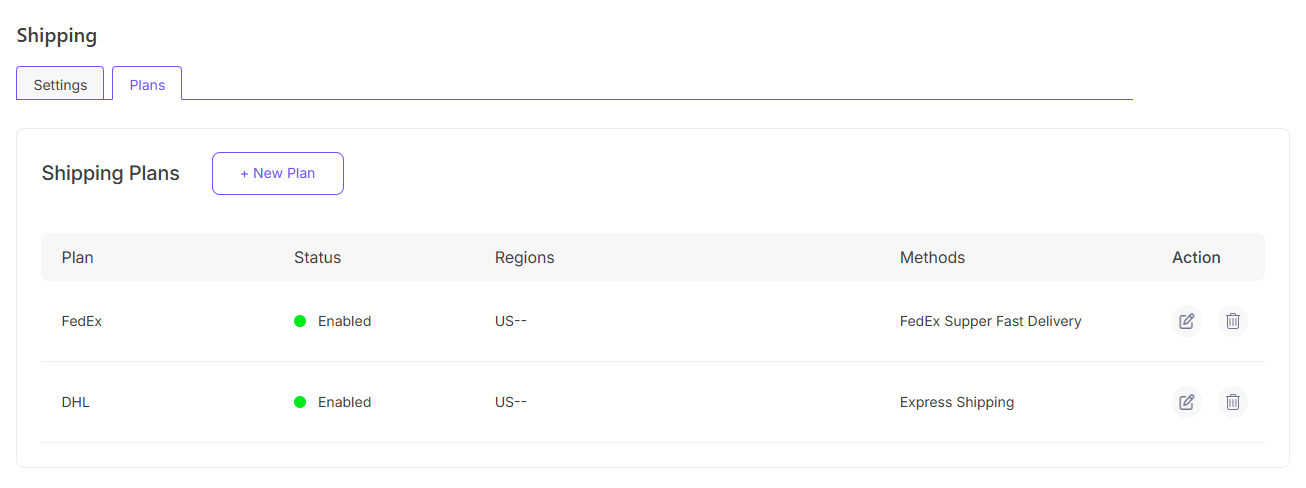
Edit them as needed with the Edit icon or delete them by clicking the Bin icon on the far right.
Example:
After saving the Shipping Plans, customers will see the applicable shipping cost on the checkout page when purchasing a product based on the selected shipping plan
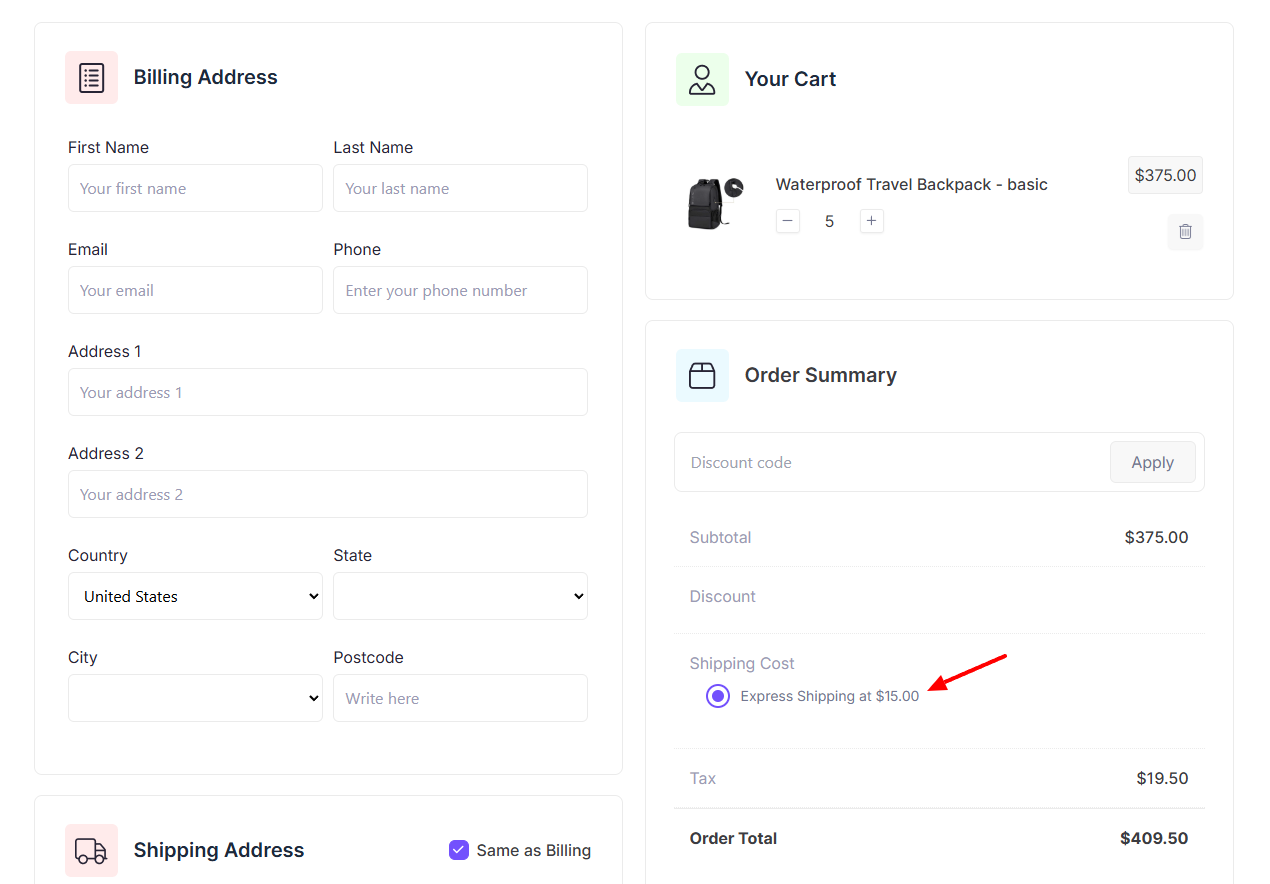
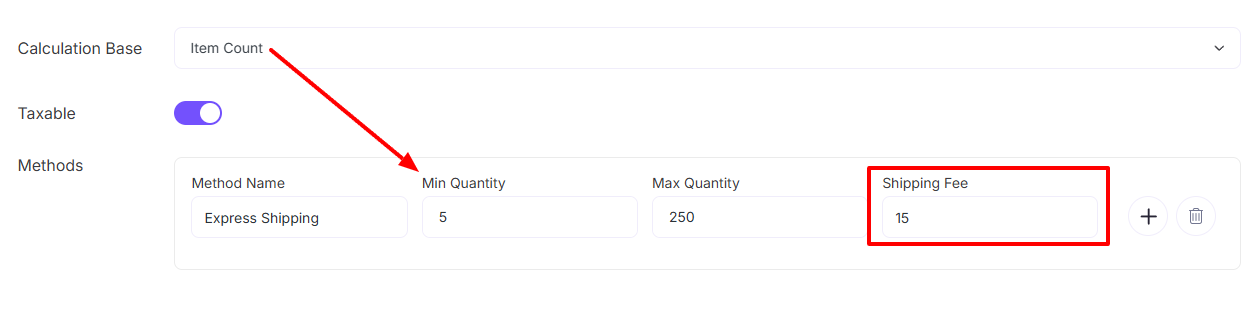
Here is the Calculation Base is Item Count and Min Quantity is 5. That’s why shipping cost is added on checkout page
In this example, the Calculation Base is set to Item Count and the Minimum Quantity is set to 5. Therefore, the shipping cost is applied on the checkout page
Was this doc helpful?