


Braintree is integrated by default in EasyCommerce. Follow the steps below to configure your ecommerce store with Braintree payment functionality in just minutes.
Here’s the step-by-step video tutorial guide:
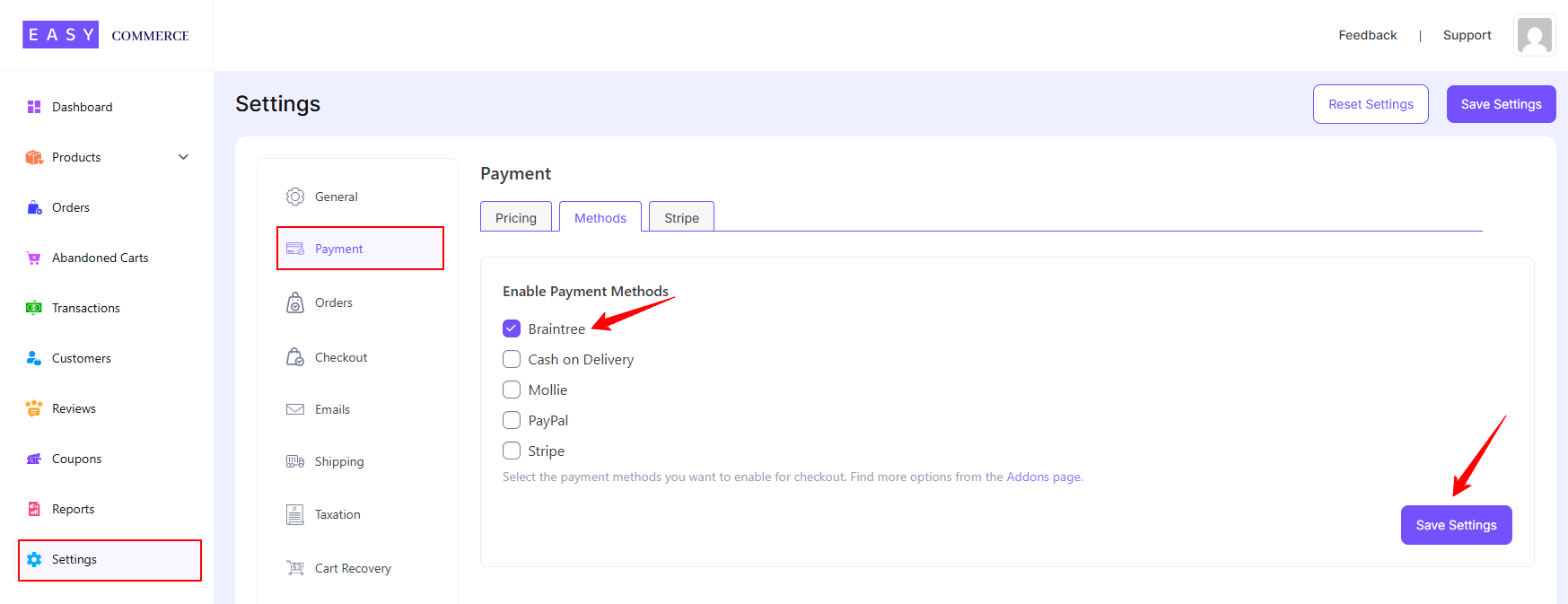
Step 1: Navigate to Payment Settings
- Go to Store > Settings > Payment.
- From the Methods section, select Braintree as your payment gateway.
- Tap ‘Save Settings’ to finalize the changes.
Step 2: Configure Braintree Settings
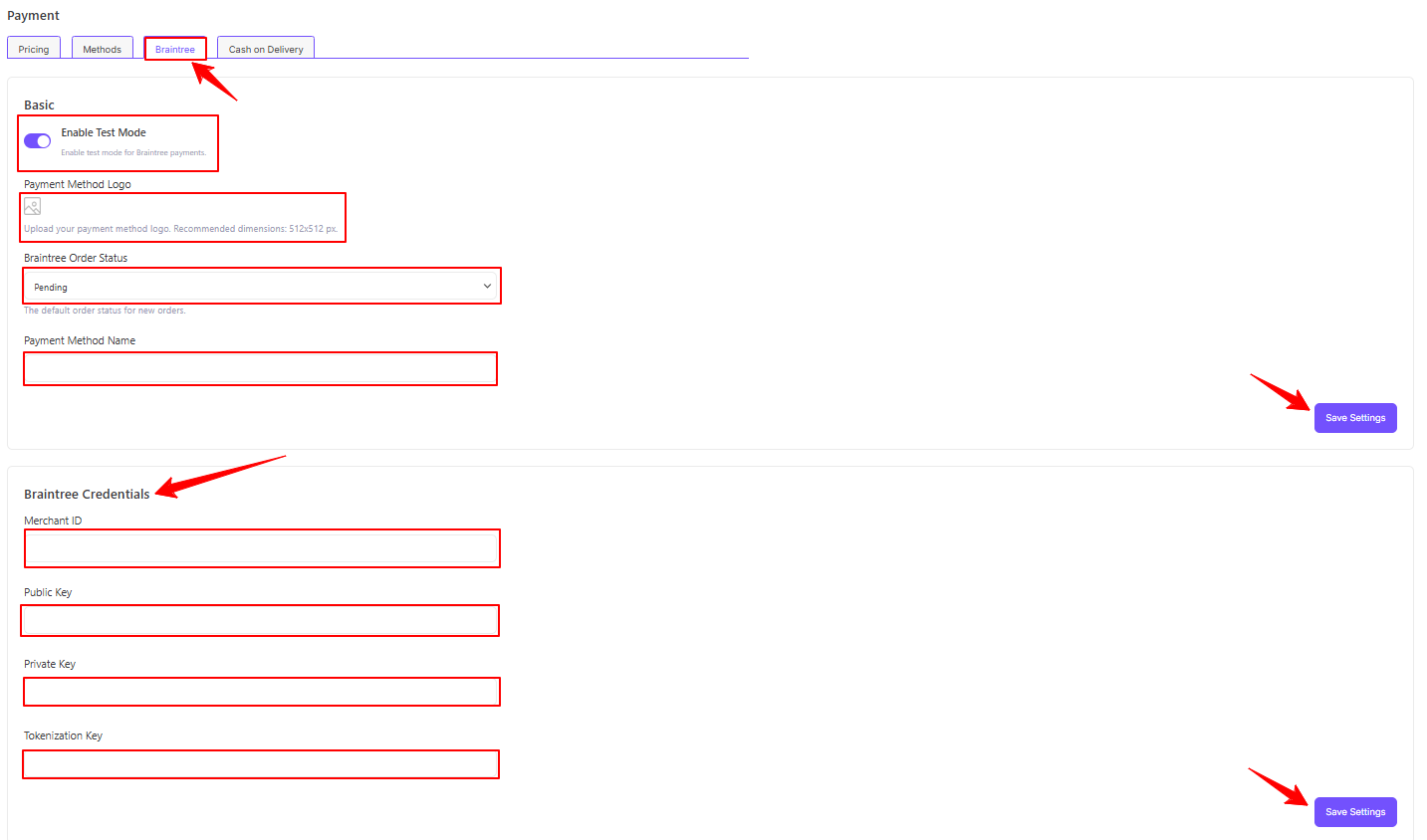
- Access the Braintree addon settings tab beside the ‘Methods’ tab.
- Activate the ‘Test Mode’ (optional).
- Configure the payment gateway settings with a name, logo and default status.
- Enter your Braintree credentials, i.e., Merchant ID, Public Key, Private Key, and Tokenization Key, to verify your connection.
- Finally, tap ‘Save Settings’ to store the changes.
Step 3: Test the Integration
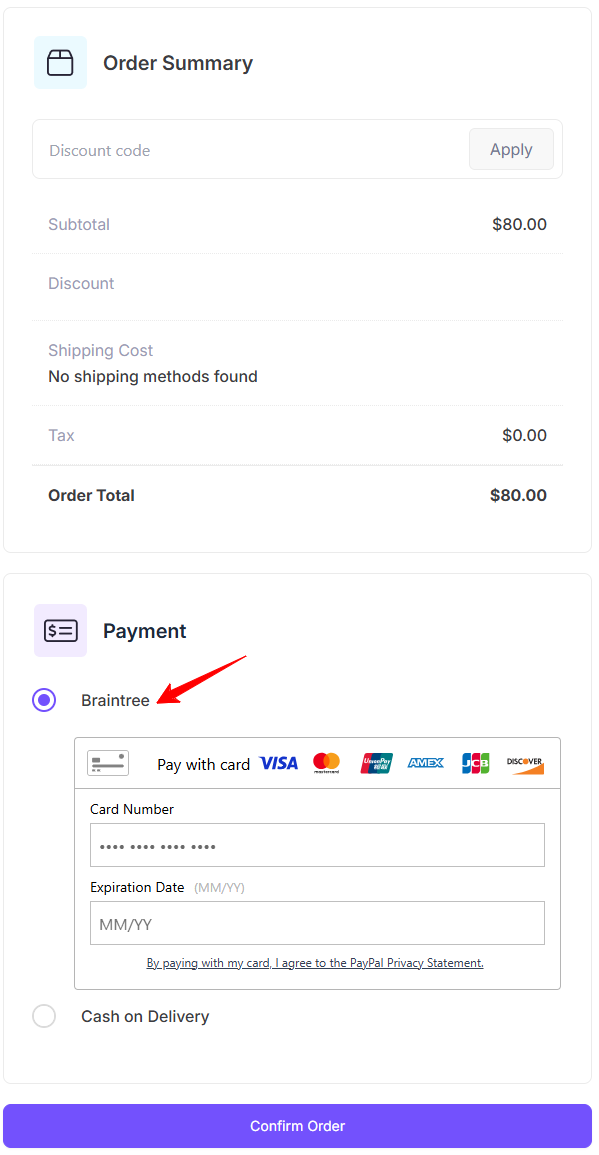
Test your account for accurate transaction activities using Braintree’s Sandbox Environment. Once testing is complete, switch to live mode and start accepting payments.
Was this doc helpful?