


Integrating your Mollie account into your ecommerce website is seamless with the EasyCommerce payment gateway addon. Follow these simple steps for a smooth setup.
To learn more about addons activation, read this documentation on how to activate free and paid addon on EasyCommerce.
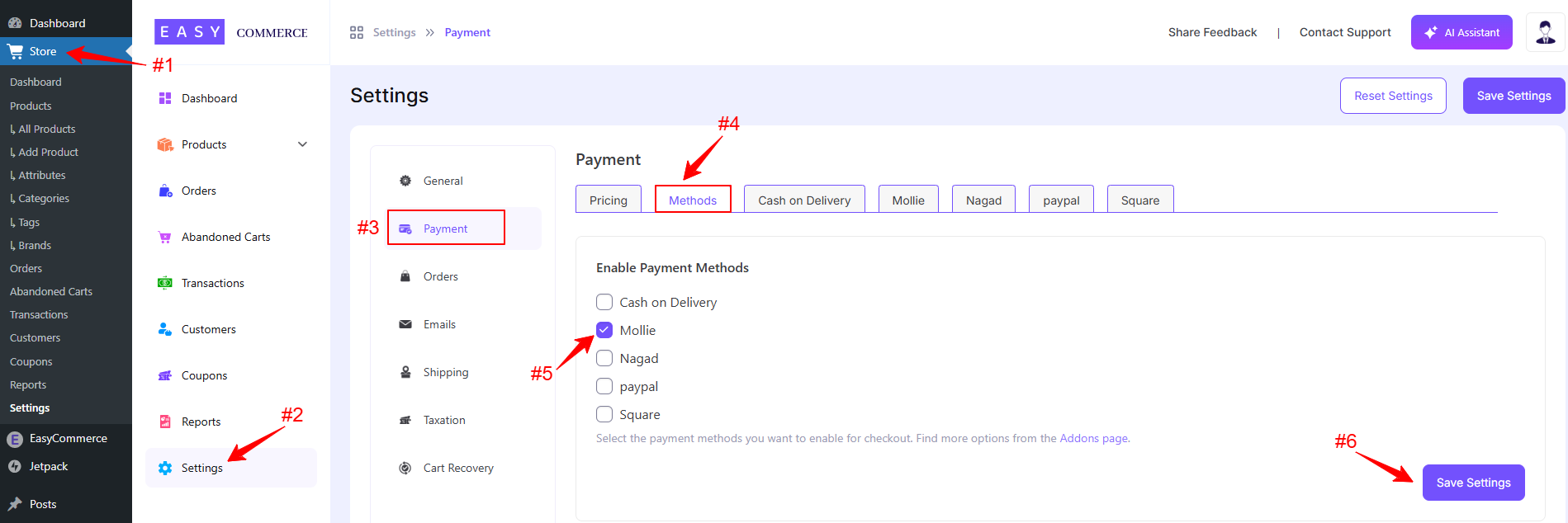
Step 1: Navigate to Payment Settings
- Go to Store > Settings > Payment > Methods.
- Select Mollie as your payment gateway.
- Tap ‘Save Settings’ to finalize the changes.
Step 2: Configure Mollie Settings
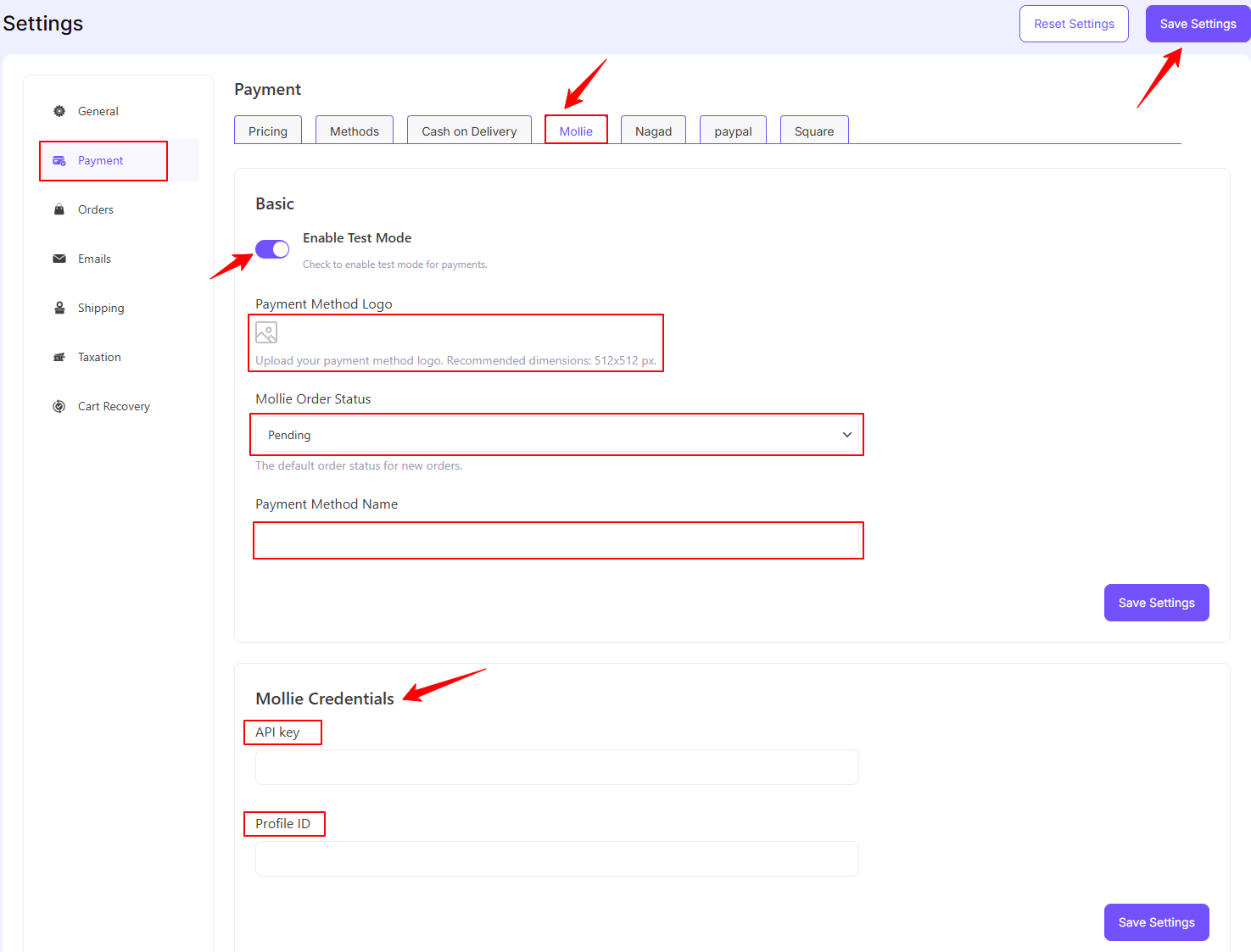
- Access the Mollie addon settings tab beside the ‘Methods’ tab.
- Enable the ‘Test Mode’ (optional).
- Configure the payment gateway settings with a name, logo and default status.
- Enter your Mollie account credentials, i.e., API Key, Profile ID, to verify your connection.
- Finally, tap ‘Save Settings’ to store the changes.
Step 3: Test the Integration
- Test your account for accurate transaction activities using Mollie’s Test API Key or organization access tokens.
- Once testing is complete, switch to live mode and start accepting payments.
Was this doc helpful?